Prerequisites
To create a project through the API, the user or organization API Key needs project.create on organization:*. If the project is created as PostgreSQL/MariaDB, use database.create; for Cache, Queue, or Valkey, use managed_service.create. To read the project afterward, grant project.read on project:<project-id>.
An owner session has full access. assistant, member, and API Keys need the corresponding grants.
To create a project on Zenifra, you need:
- a created and verified account
- to be signed in to the console
Accessing Project Creation
In the console sidebar, click + Create project.
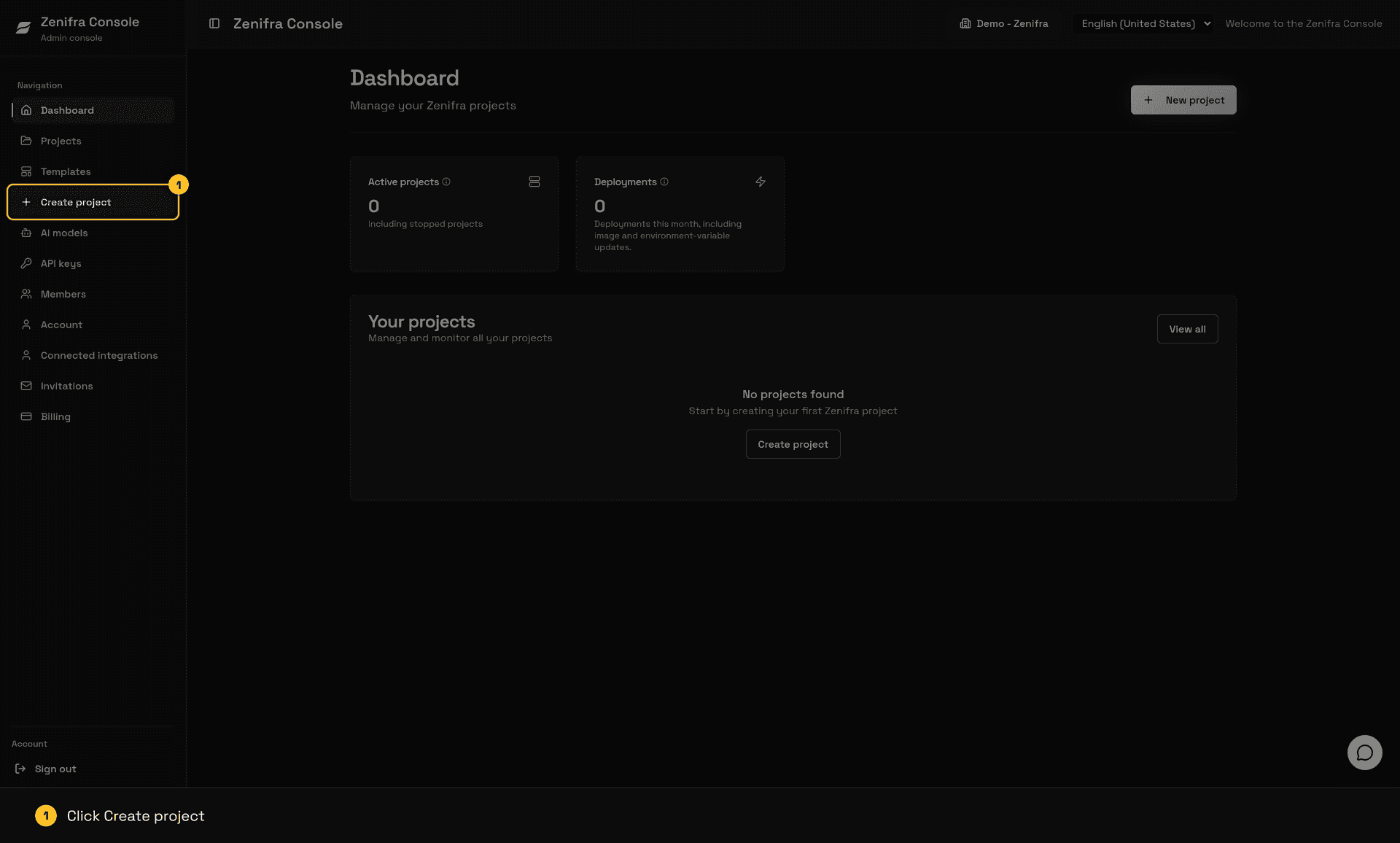
Video: creating an HTTP project from an OCI image on the Free plan, from the console to the live application.
Step 1: Choose the Project Type
Zenifra offers different application types for deployment:
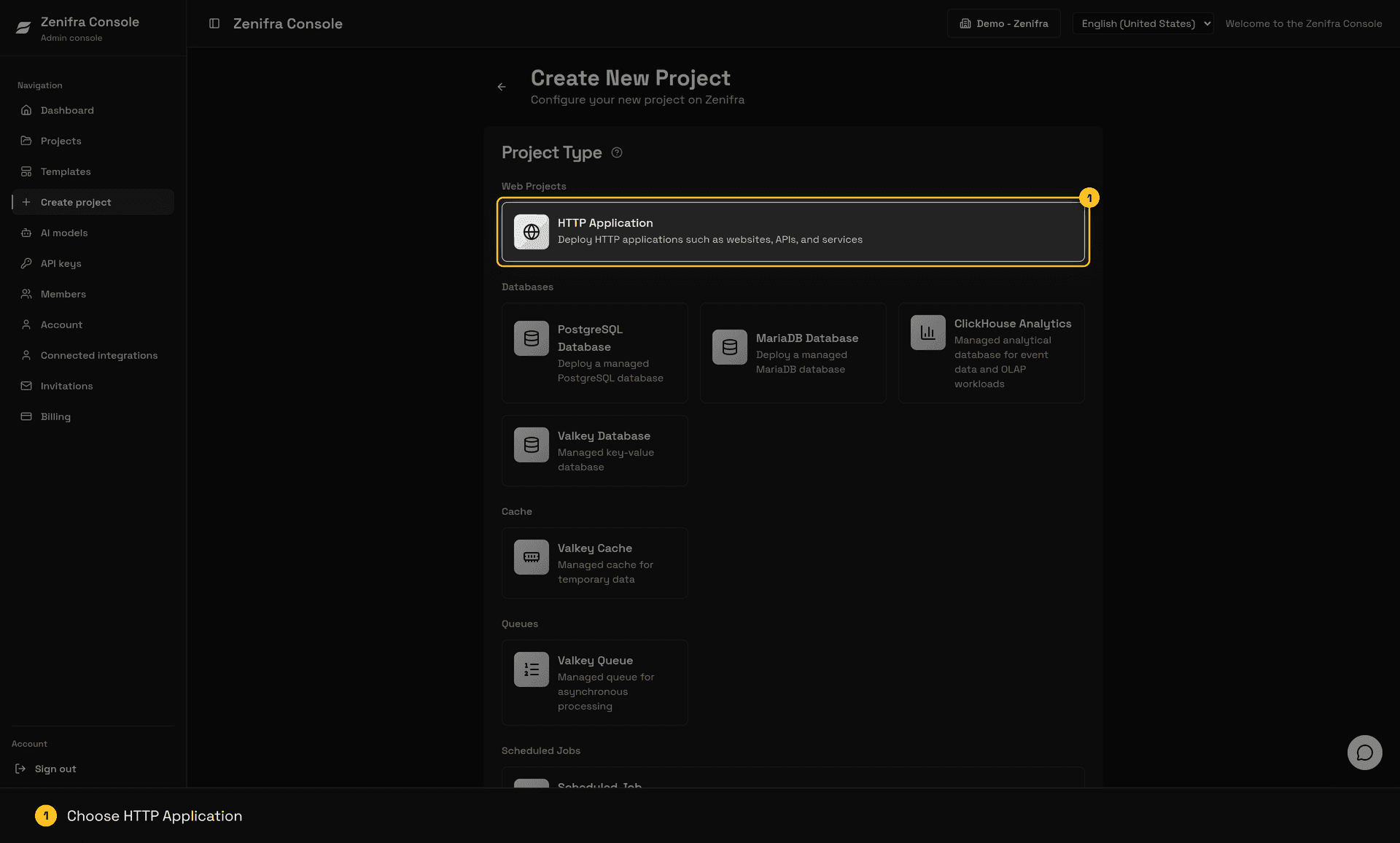
HTTP Application
Ideal for:
- web applications (React, Vue, Angular)
- HTTP servers (Nginx, Apache)
- REST APIs
- Node.js, Python, and Bun applications via GitHub Repository
- Java, Go, PHP, .NET, Nginx, Apache, and other stacks via OCI Image
Publishing methods
Zenifra offers two ways to publish an HTTP project:
- GitHub Repository: choose
Project SourceasGitHub Repository, then select the repository and branch and choose an update mode. If you want every push to that branch to publish automatically, select Automatic by branch. You can change the mode after creation; see GitHub Deployment. You can also edit thepre-build,build, andstartcommands on the edit project screen.pre-buildandbuildare optional;startis required. - OCI Image: provide a standard OCI image (Docker) to publish the application. In this flow, new versions are published by updating the image or tag in the console.
PostgreSQL Database
If you need a managed database, see our tutorial on how to create a PostgreSQL database.
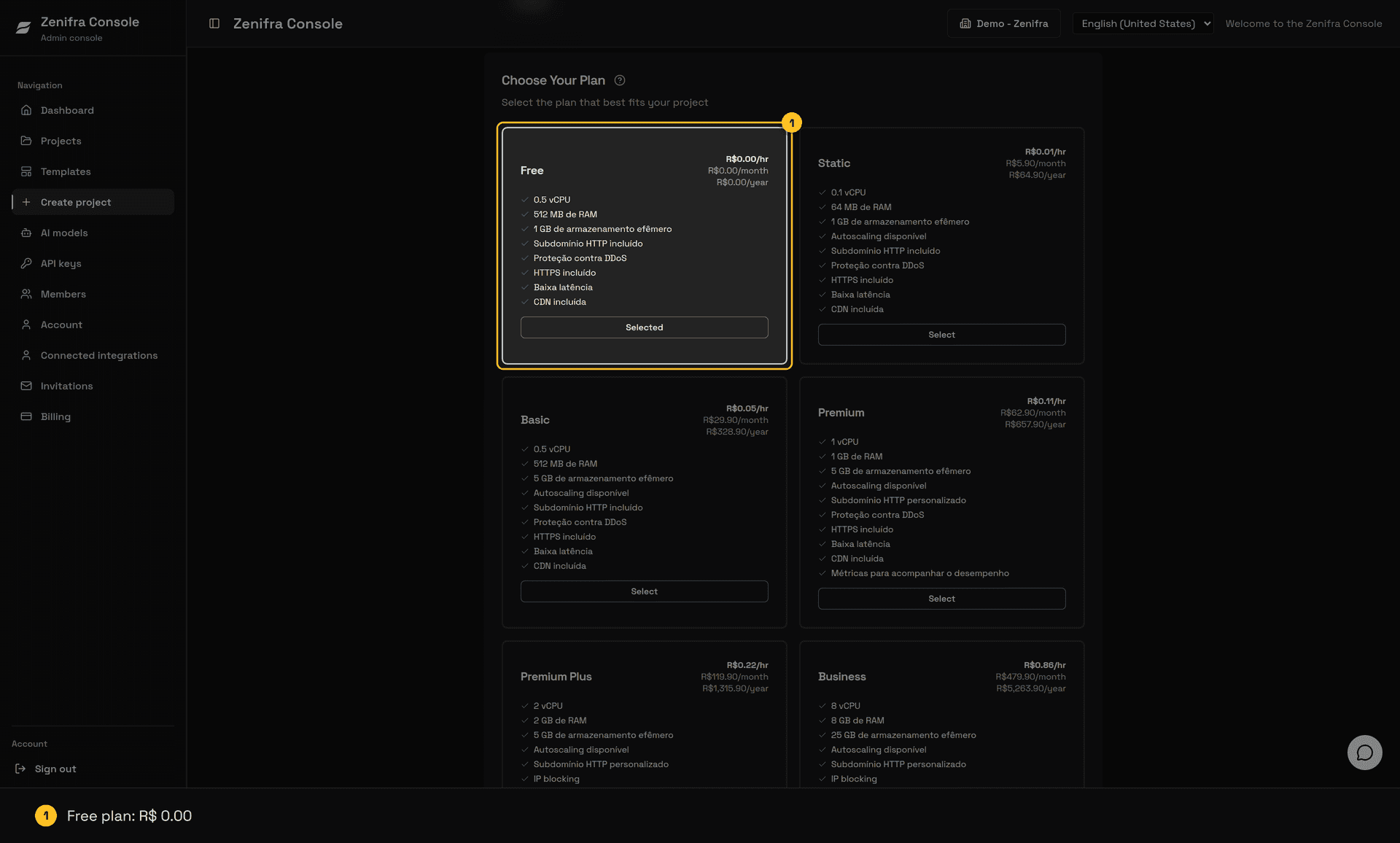
Step 2: Select the Plan
Plans define the available resources and the price of your application. Each plan offers different levels of:
- CPU, Memory, and GPU
- free storage (when available)
- exclusive features (custom subdomain, IP blocklist, etc.)
Payment Models
Choose how you want to pay for your project:
| Model | Description | Ideal for |
|---|---|---|
| Hourly | Pay for each hour of use. Only pay for the time your application stays active. | Projects with intermittent use, testing, development |
| Monthly | Fixed monthly price. Instance reserved for you during 30 days. | Applications that need to stay always available |
| Yearly | Annual conditions according to the current offer. Instance reserved for long-term projects. | Long-term projects |
Tip: In hourly billing, if your application runs only 10 minutes in the month, you pay only for 1 hour.
Step 3: Configure Basic Information
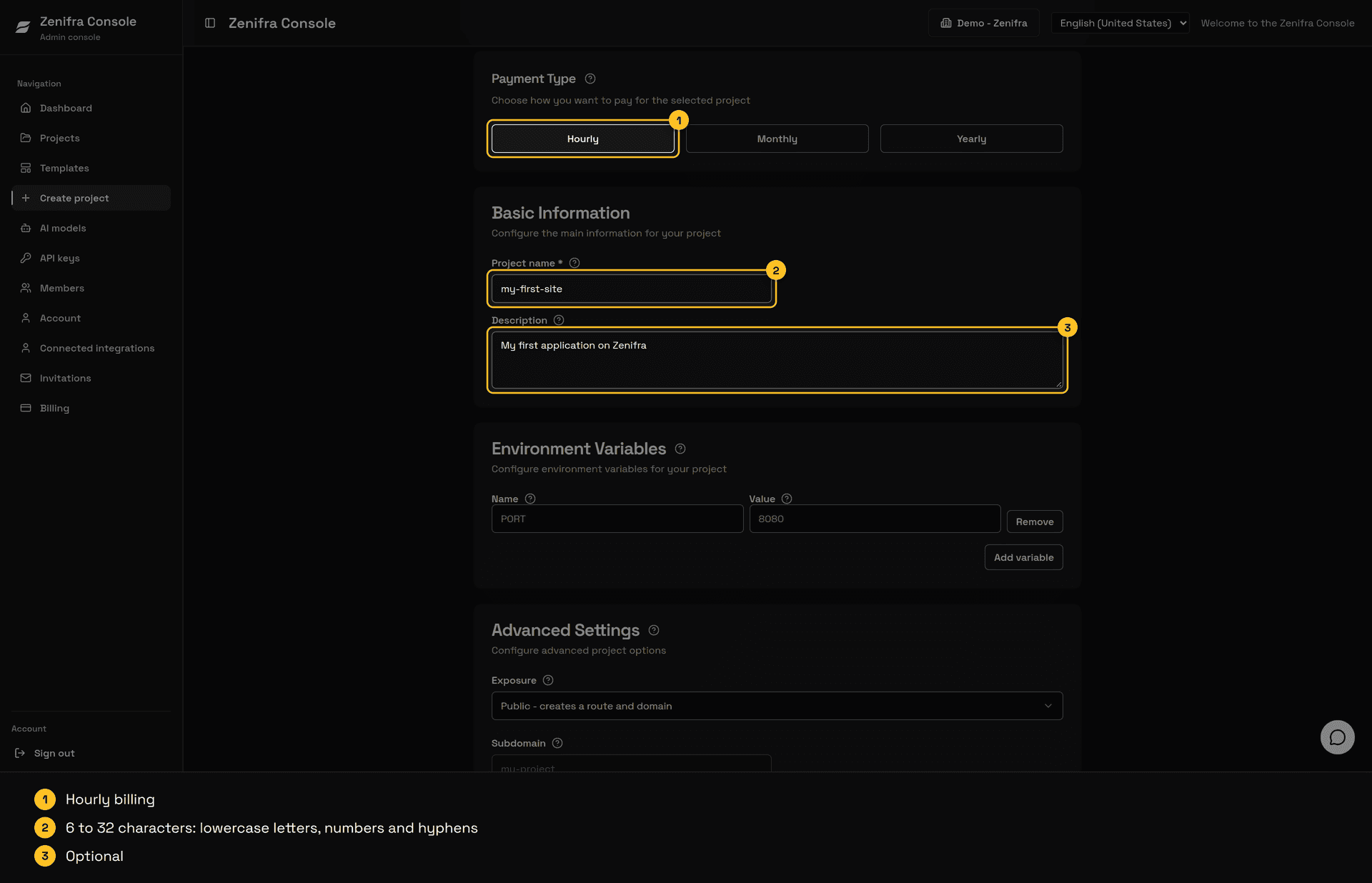
Project Name
The name is used to:
- identify your project on the dashboard
- create automatic subdomains
Name rules:
- Minimum: 6 characters
- Maximum: 32 characters
- Only lowercase letters, numbers, and hyphens
- Example:
my-web-project,my-company-api
Description
Optional field to add information about the project. It helps organize and identify projects when you have many of them.
Step 4: Configure the Project Source
GitHub Repository
If you selected GitHub Repository, choose the repository, main branch, and application runtime. For Node.js, Python, and Bun projects, review the pre-build, build, and start commands before creating the project. Not every project needs build; the field can stay empty when the application only needs start.
The optional Root directory field sets the repository folder where install, build, and start run. Keep . to use the repository root. In a monorepo, enter the relative path of the application folder, such as backend or apps/api, without .. and without a leading slash. See Root directory and monorepos.
In Automatic by branch mode, every push to the selected branch publishes a new version. In Manual, By Tag, and By Release modes, updates follow the selected action or event. See GitHub Deployment for details.
OCI Image
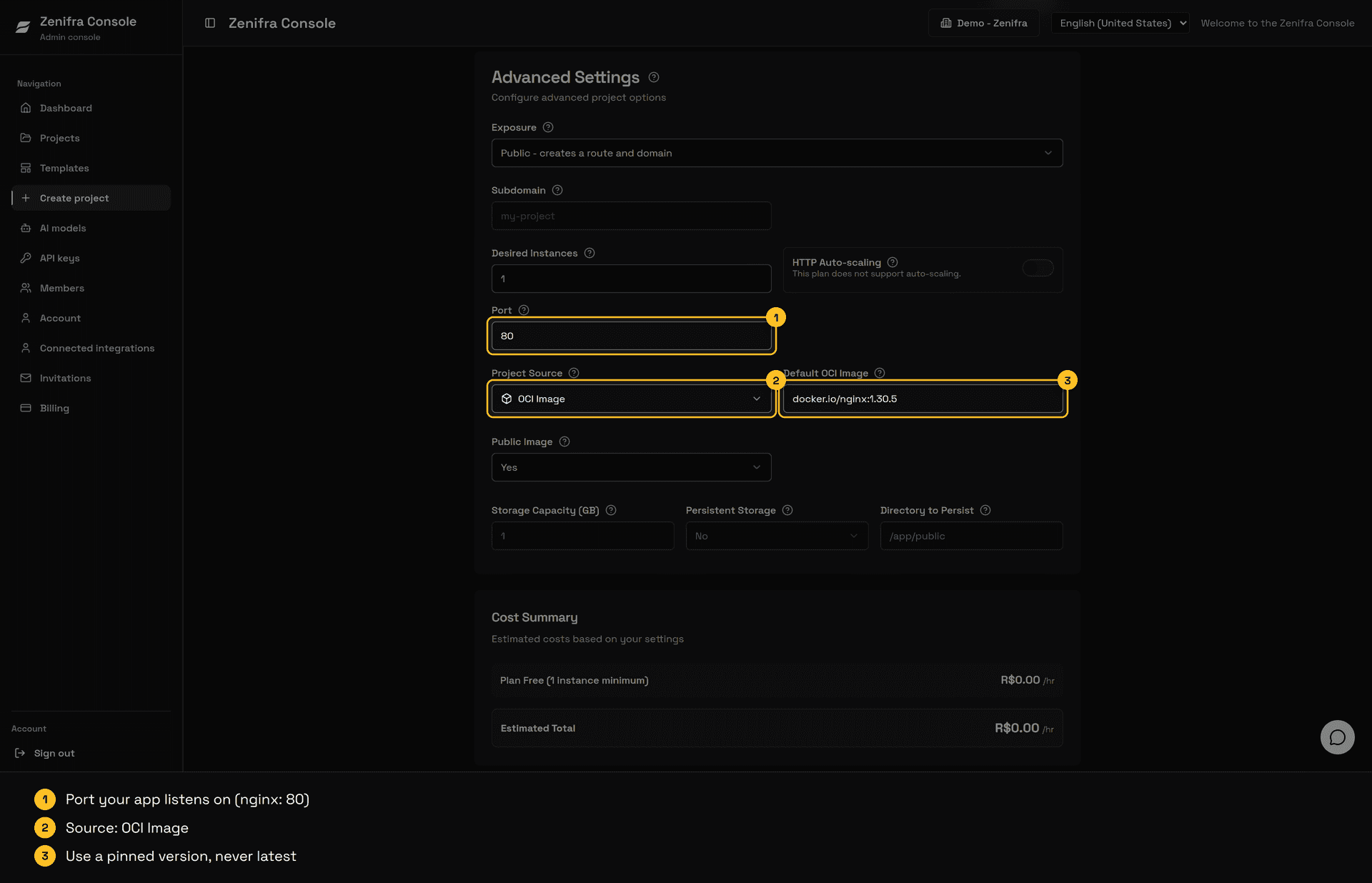
The OCI image is the template that will be used to create your instance. You can use public or private images.
Public Image
Images that do not require authentication to download. Examples:
docker.io/nginx:1.30.5-alpine
docker.io/metabase/metabase:v0.50.0
docker.io/wordpress:6.5.3-php8.2-apache
Private Image
For images in private registries, you need to configure authentication:
Option 1: AWS ECR
- AWS region where your repository is located
- Access Key ID and Secret Access Key
- Your AWS account ID
Option 2: Username and Token
- Registry username
- Access token or password
Important: Always use specific tags (such as
v1.2.3) instead oflatest. This ensures that your application always uses the same image version.
Step 5: Configure Port and Instances
Application Port
The port your application listens on internally. External traffic (HTTP/HTTPS on ports 80 and 443) is routed to that port.
Common ports by technology:
| Technology | Default Port |
|---|---|
| Node.js | 3000 |
| Python Flask | 5000 |
| Java/Spring | 8080 |
| Nginx | 80 |
Number of Instances
Number of replicas for your application:
- 1 instance: ideal for low-traffic applications or testing
- 2+ instances: high availability and load balancing
Recommendation: For production applications, use at least 2 instances to improve availability in case of failures.
Step 6: Environment Variables
Environment variables (ENVs) are settings that your application can access at runtime. They are useful for:
- sensitive settings (API keys, passwords)
- external API URLs
- settings that change between environments
ENV examples:
DATABASE_URL=postgres://user:pass@host:5432/db
API_KEY=your-key-here
PORT=3000Limit: Up to 50 environment variables per project.
Step 7: Configure Storage
Persistent Storage
Choose "Yes" if your application needs to:
- save files that should survive restarts
- keep user uploads
Choose "No" for applications where data is ephemeral (such as stateless web servers).
Note: Persistent storage data is replicated across 3 different instances. That means if you save a PDF file and, for some reason, a Zenifra server fails, your locally saved file still remains available.
Storage Capacity
- Minimum: 1 GB
- Maximum: 250 GB
Warning: In hourly billing, storage can only be increased, never reduced. For monthly or yearly contracts, storage cannot be changed after project creation.
Directory to Persist
Absolute path of the directory inside the container whose data will be saved:
/app/data
/var/lib/postgresql/data
/uploads
A common use case for the free storage included in the plan, when available, is storing files in /data, such as temporary imports, generated PDFs, reports, or other artifacts that can be deleted after use.
Important: You can choose the persisted folder when creating the project, but that path cannot be changed later.
Step 8: Configure Domains
Before configuring domains, choose the project exposure:
- Public: Zenifra creates a public route and domain for the application.
- Private: the application runs without a public internet route and does not receive a Zenifra domain.
Use private projects for automations, workers, internal routines, or applications that do not need external traffic.
Zenifra Subdomain
Every public HTTP project receives a Zenifra subdomain. Zenifra first tries the project name; if that name is already in use, it adds a random suffix to keep the address unique. The project ID is not part of the address.
For a custom subdomain, use 6–54 characters with lowercase letters, numbers, and internal hyphens. The address cannot start or end with a hyphen.
Public projects on plans above Basic can also choose a custom subdomain in the following format:
your-project-sub-domainCustom Domain
You can use your own domain (for example api.yourcompany.com) instead of the default subdomain, but this is configured after the public project has already been created and is reachable through the default Zenifra domain.
To configure after creation:
- Open the project settings
- Add your custom domain (for example
api.yourcompany.com) - For subdomains, such as
api.yourcompany.com, configure aCNAMEpointing to the subdomain created by Zenifra - For root domains, such as
yourcompany.com, useCNAMEonly with a provider that supports CNAME flattening, or redirect the root to a subdomain such aswww.yourcompany.com - Publish the SSL validation
TXTrecords shown in the console, if requested
Limit: Up to 20 custom domains per project.
Step 9: Configure Network Access (Premium+ Plans)
This option is available only on specific plans.
Whitelist
Defines which IP addresses can access your project. Non-listed IPs are blocked.
CIDR format:
0.0.0.0/0- Allows all IPsXXX.XXX.XXX.XXX/YY- Allows only that IP and its block
You can add your current IP automatically with one click.
Blacklist
Defines specific IPs that are blocked, even if they are on the whitelist.
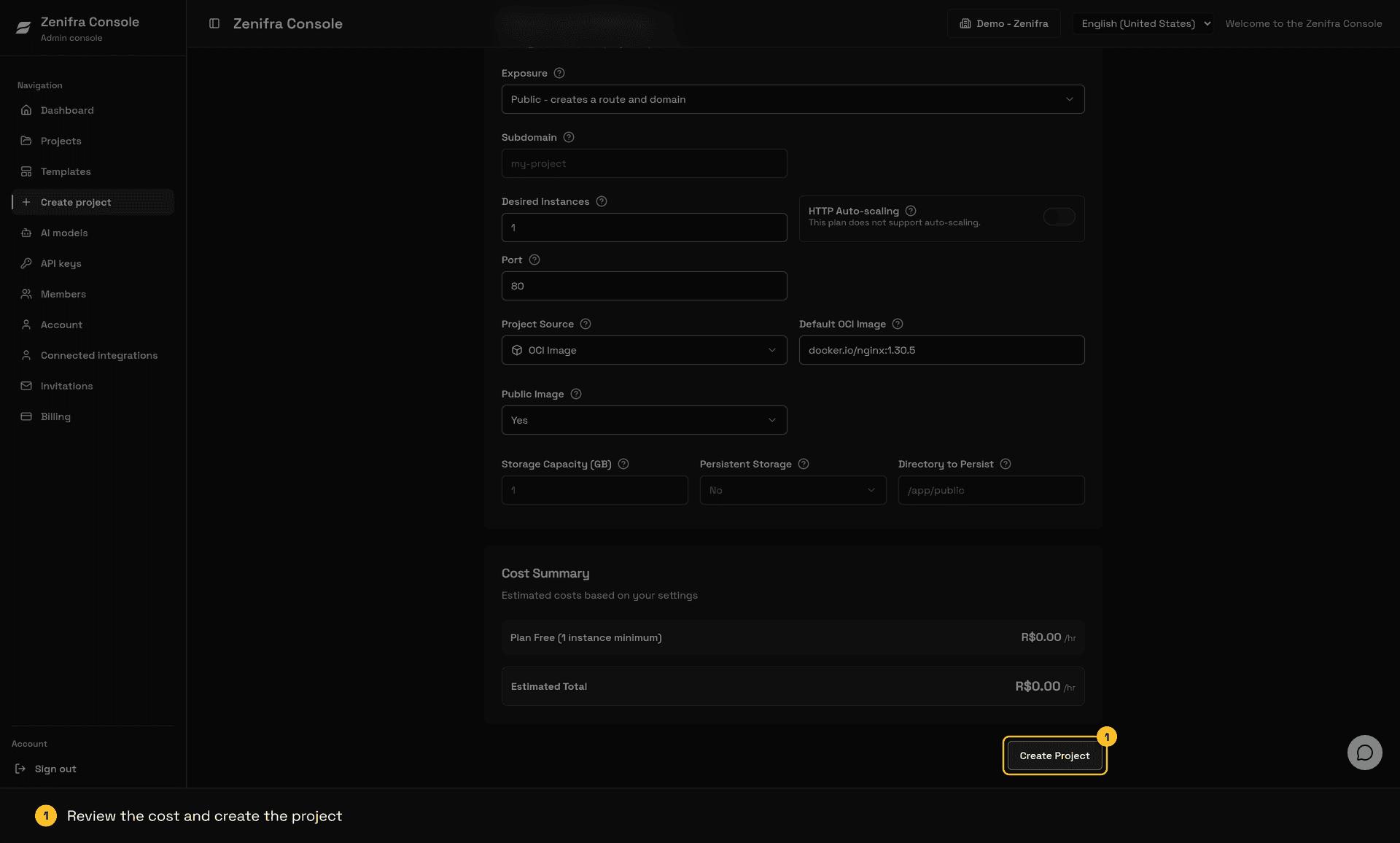
Step 10: Finish Creation
- Review all settings
- Click "Create Project"
- Wait a few seconds for creation
After Creation
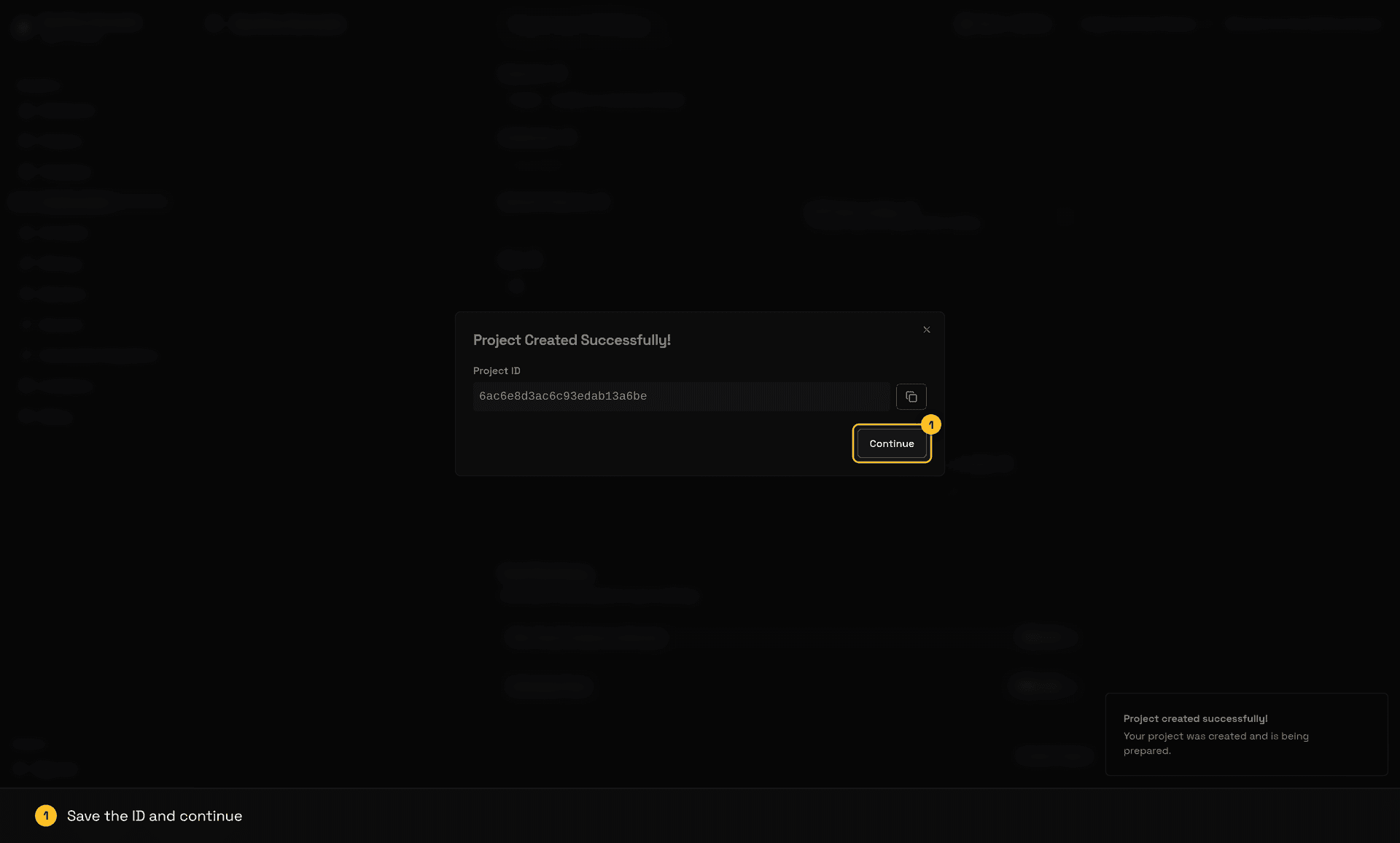
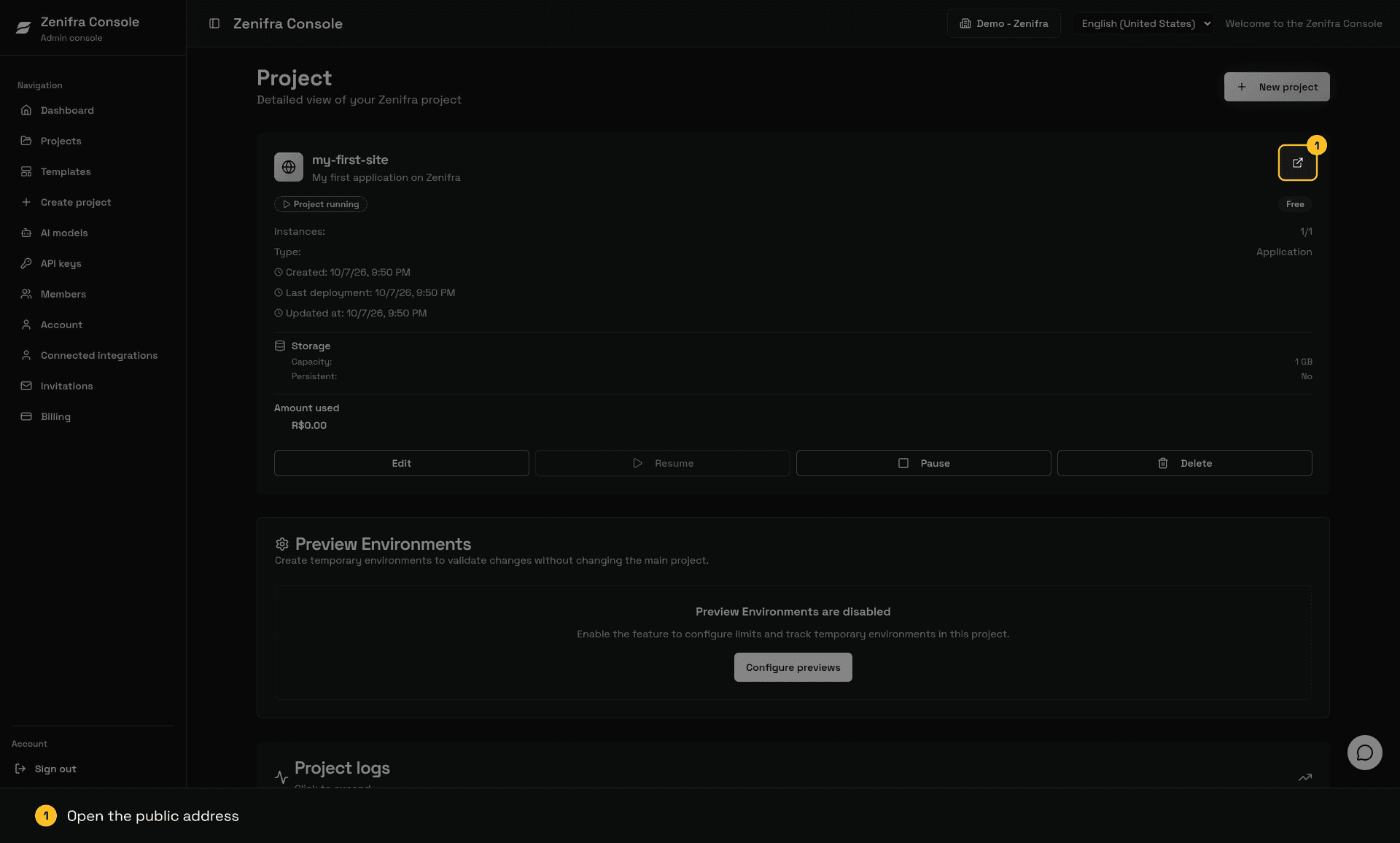
The console confirms the creation and shows the Project ID. When you click Continue, you return to the project list, where the new project shows its current status:
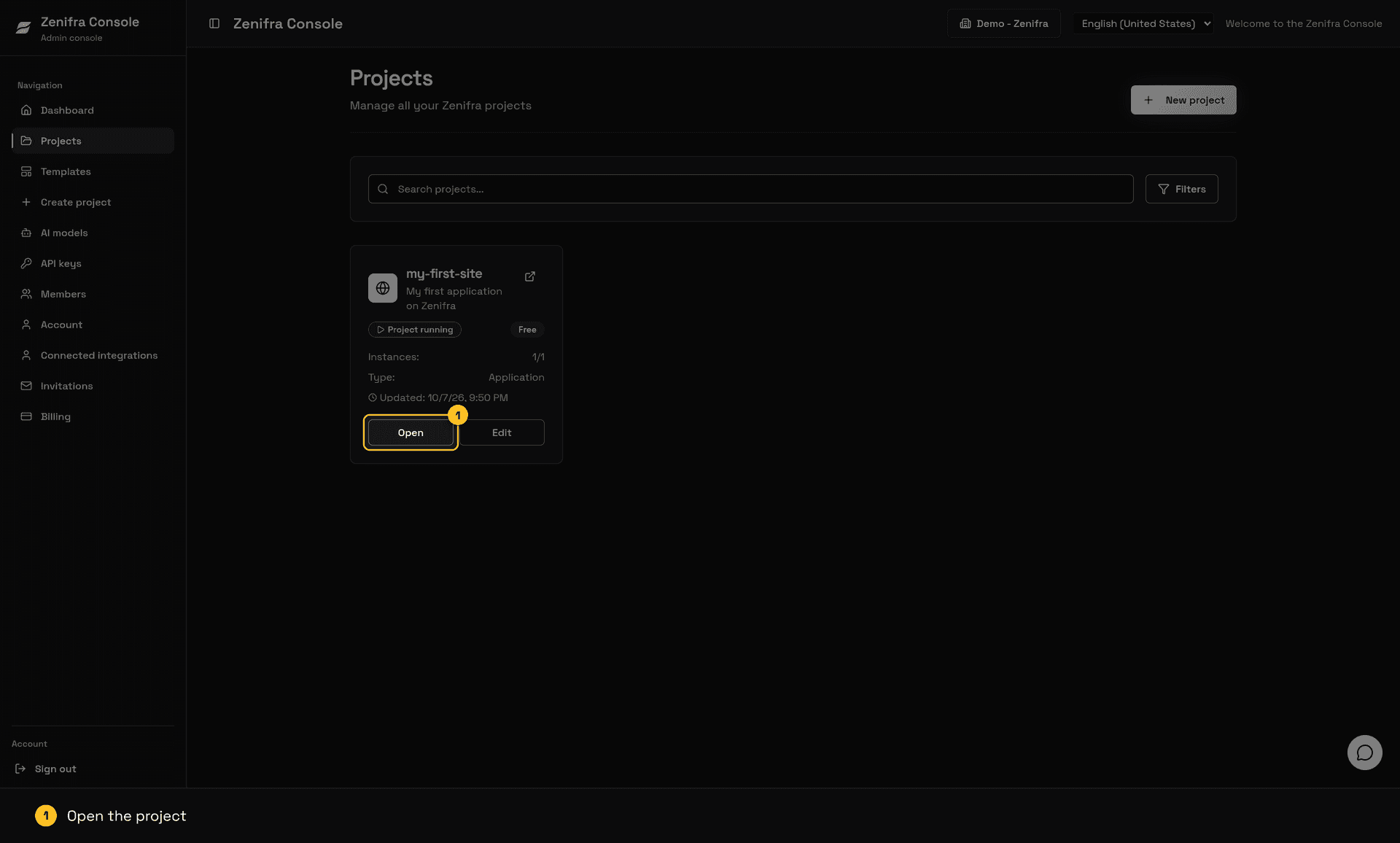
Open the project to see:
- Project ID: unique identifier used by the CLI, the API, and the GitHub Action
- Public address: available when the project was created as public
- Status and logs: to follow the first deployment
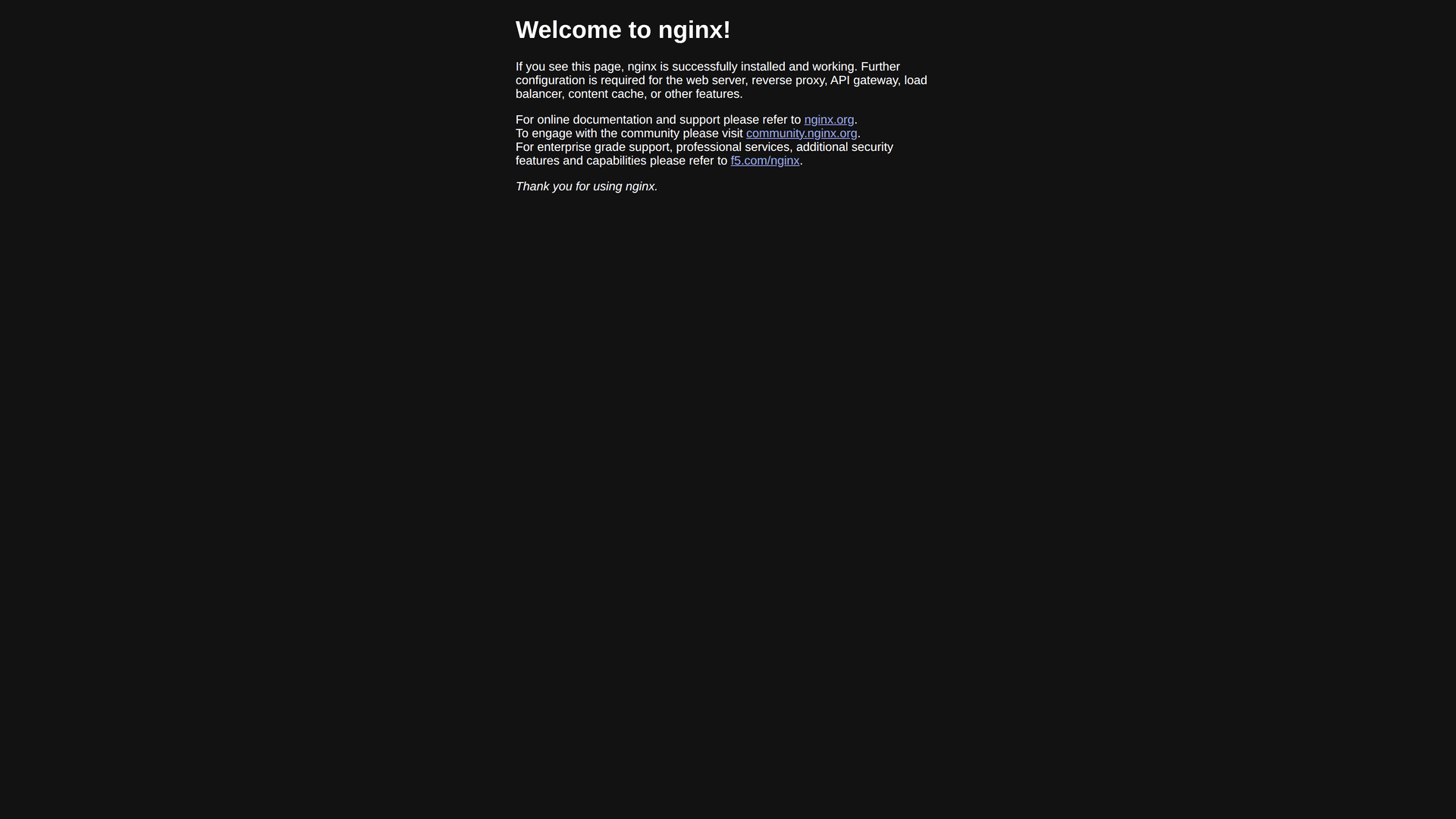
When the status changes to Project running, the application already responds at the public address over HTTPS:
To automate the project through the API, CLI, or GitHub Actions, create an organization API key with only the scopes you need. Store the key in a secret manager and never commit it to the repository.
Next Steps
FAQ
Can I change the plan after creating the project?
It depends. If the payment model is Hourly, you can change the plan at any time. For monthly or yearly contracts, the change is only allowed at the end of the contracted period.
How do I update my project image?
If the project uses GitHub Repository as the source, the selected update mode defines how to publish: Automatic by branch responds to pushes, while Manual, By Tag, and By Release follow their respective flows. If the project uses an OCI image, update the image in the console and publish the new version.
Can I change the pre-build, build, and start commands later?
Yes. In projects with source GitHub Repository, you can edit those commands and the Root directory after creation on the edit project screen.
Can I change the persistence directory later?
No. The directory chosen during creation for persistent storage, such as /data, cannot be changed later.
Can I have multiple projects?
Yes. There is no project limit per account. Each project is billed independently according to its settings.
How do I delete a project?
- Open the specific project page
- Click Delete
- Confirm the action
Warning: This action is irreversible. All data and settings are permanently deleted.
Last updated on
How to Change HTTP Project Settings
Learn how to change your HTTP project settings on Zenifra via console. Name, description, image, ENVs, instances and more.
HTTP Project Metrics and Insights
Learn how to use the HTTP project metrics and insights tab on Zenifra. Monitor CPU, RAM, storage, requests, and logs.