Accessing Metrics
- In the sidebar menu, click Projects
- Find and click the desired project name
- You will be taken to the project view page
Note: Project logs are available on every plan. Detailed CPU, memory, storage, and HTTP request metrics are available for projects on Premium plans or higher.
Project Overview
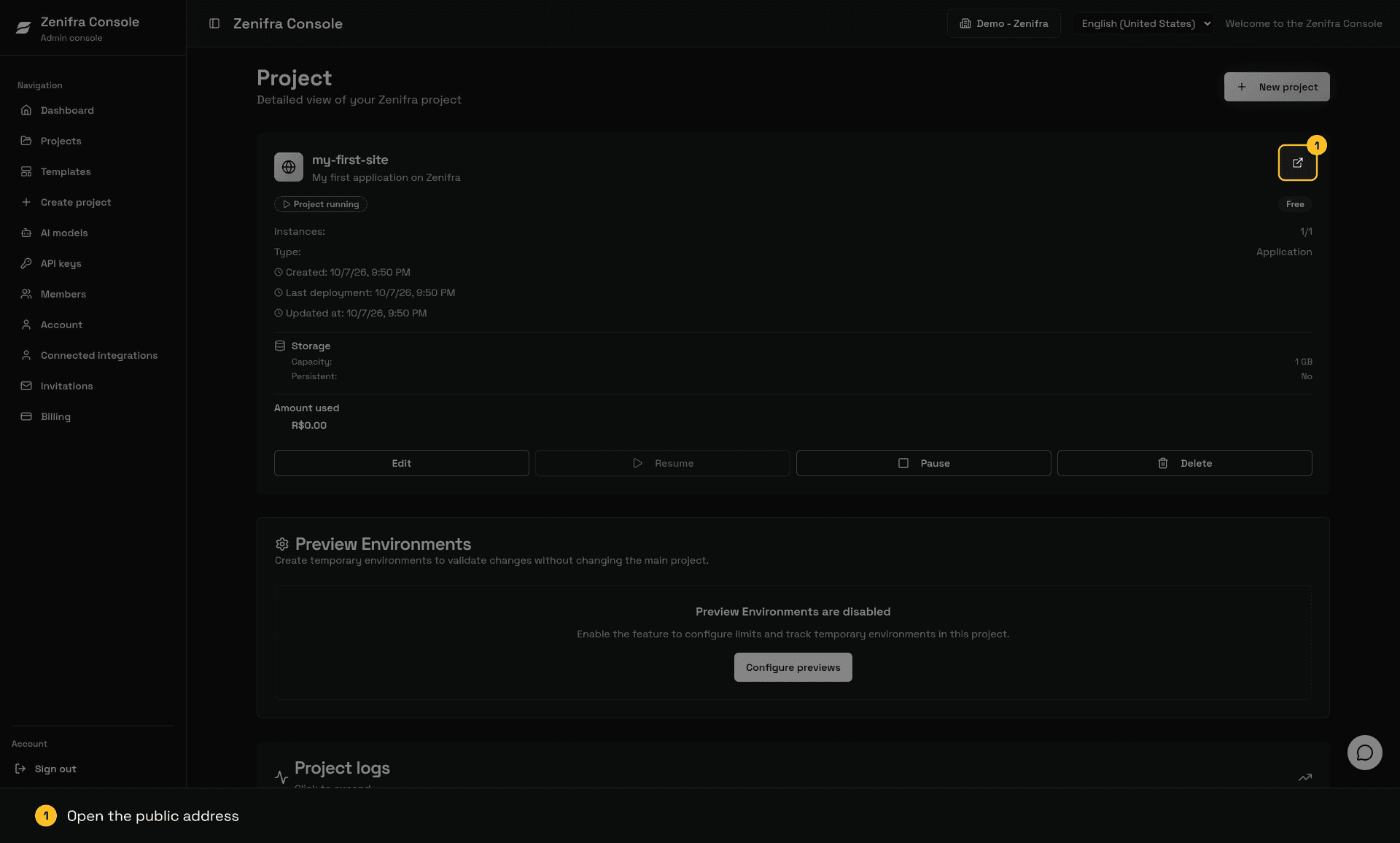
On the project view page, you can find:
Project Status
| Status | Description |
|---|---|
| Project running | Active and accessible project |
| Project stopped | Paused and inaccessible project |
| Creating project / Preparing project | Project is in the creation process |
| Deploying | A new version is being published |
| Project has unavailable instances | One or more instances are not responding |
| We could not prepare the project | Creation or publication failed; check the build logs |
Main Information
- Name and Description: Project identification
- Type: HTTP
- Instances: Active replicas / Total configured
- Plan: Current project plan
- Last deployment: Date and time of the latest publication
- Created and Updated at: Creation date and date of the latest change
Storage
In the storage section, you can view:
- Capacity: Total configured storage (in GB)
- Persistent: Whether the storage is persistent (Yes/No)
- Path: Configured persistence directory (when applicable)
Billing Information
Hourly Projects
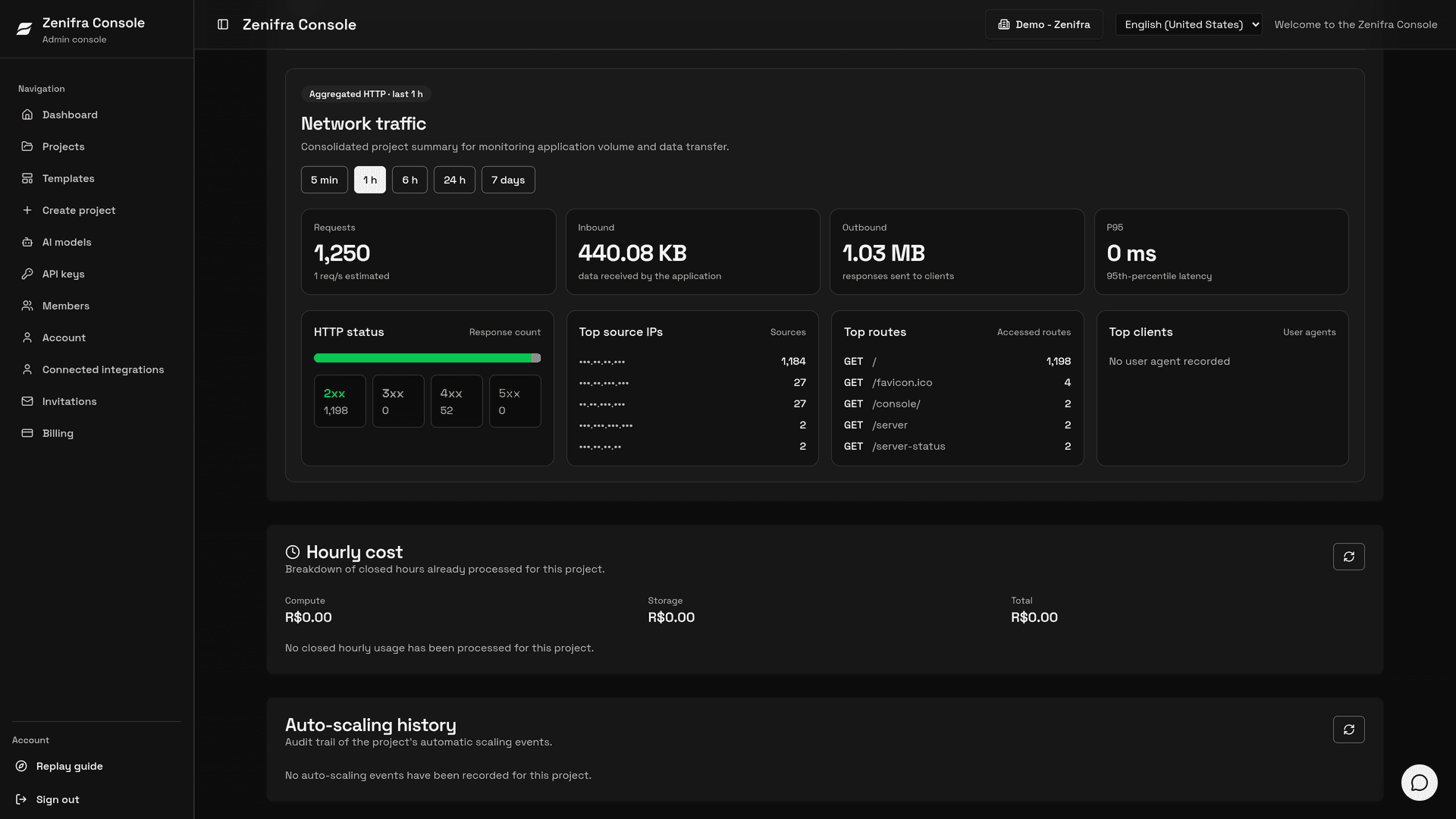
Shows the Amount used so far and the Hourly cost section, with the breakdown of closed hours (compute and storage, with Closed or Pending status).
Warning: The displayed value is an estimate and may not reflect the final amount charged.
Contract Projects (Monthly/Yearly)
Displays contract information:
- Payment mode: Monthly contract or Yearly contract
- End date: When the contract expires
- Automatic renewal: Whether the contract will renew automatically
Project Actions
On the view page, you have access to the following actions:
| Button | Description |
|---|---|
| Edit | Opens the project settings |
| Resume | Resumes a paused project |
| Pause | Pauses a running project |
| Delete | Deletes the project permanently |
Project Logs
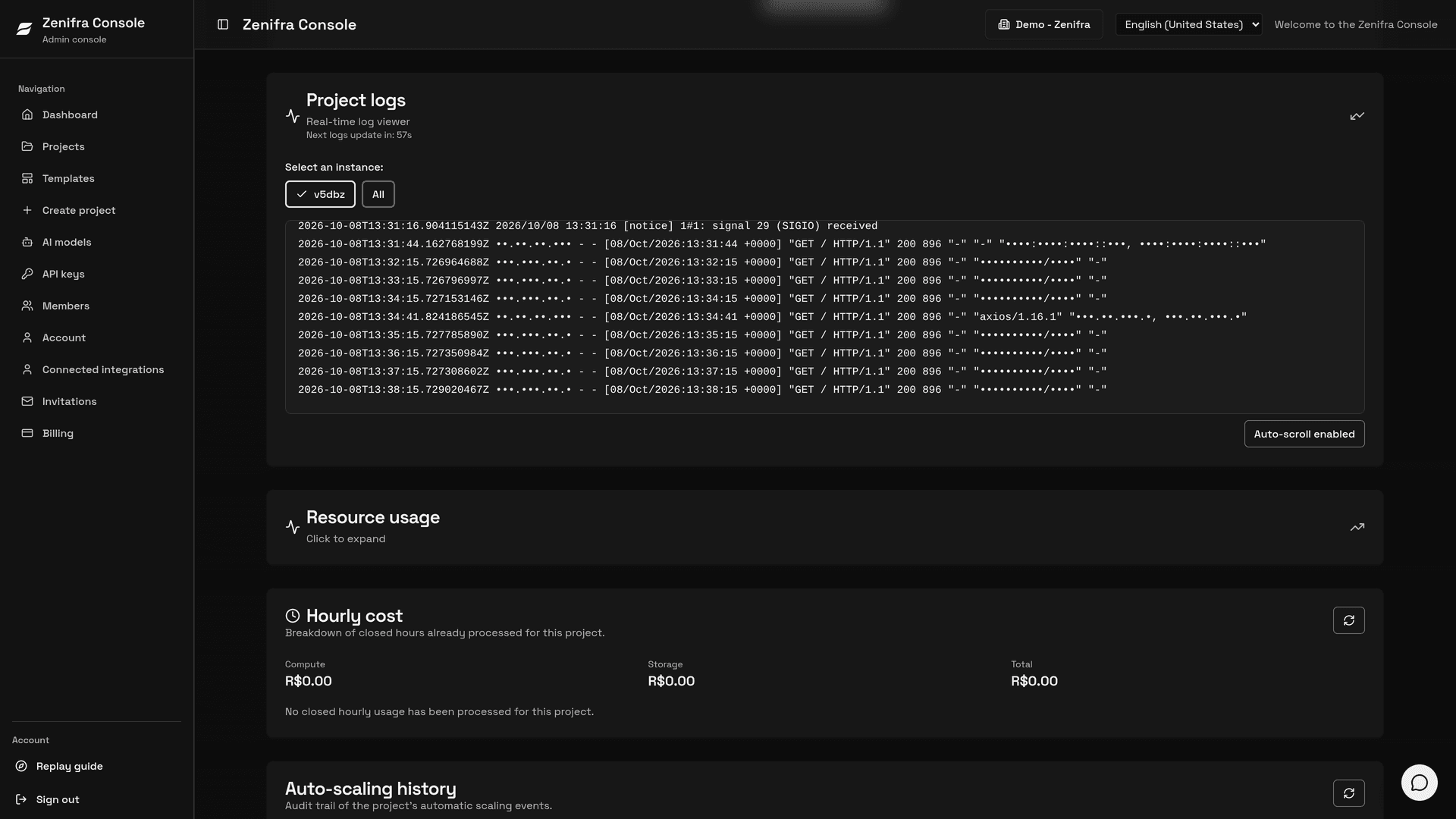
Logs let you track application behavior per instance.
How to access
- On the project page, click the Project logs card to expand it
- Pick the instance in Select an instance (or All)
- Logs reload automatically every 60 seconds; the countdown is shown on the card
Limitations
- Logs are available on every plan
- The project must be in Project running status
- Logs are read live from the instances and show only the most recent output (up to about 50 KB per request); application logs are not retained historically
Tips
- Use logs to diagnose issues
- Identify errors and exceptions
- Distinguish versions and releases using information from your application, such as
ZENIFRA_INSTANCE_VERSION
Resource Usage (Premium plan or higher)
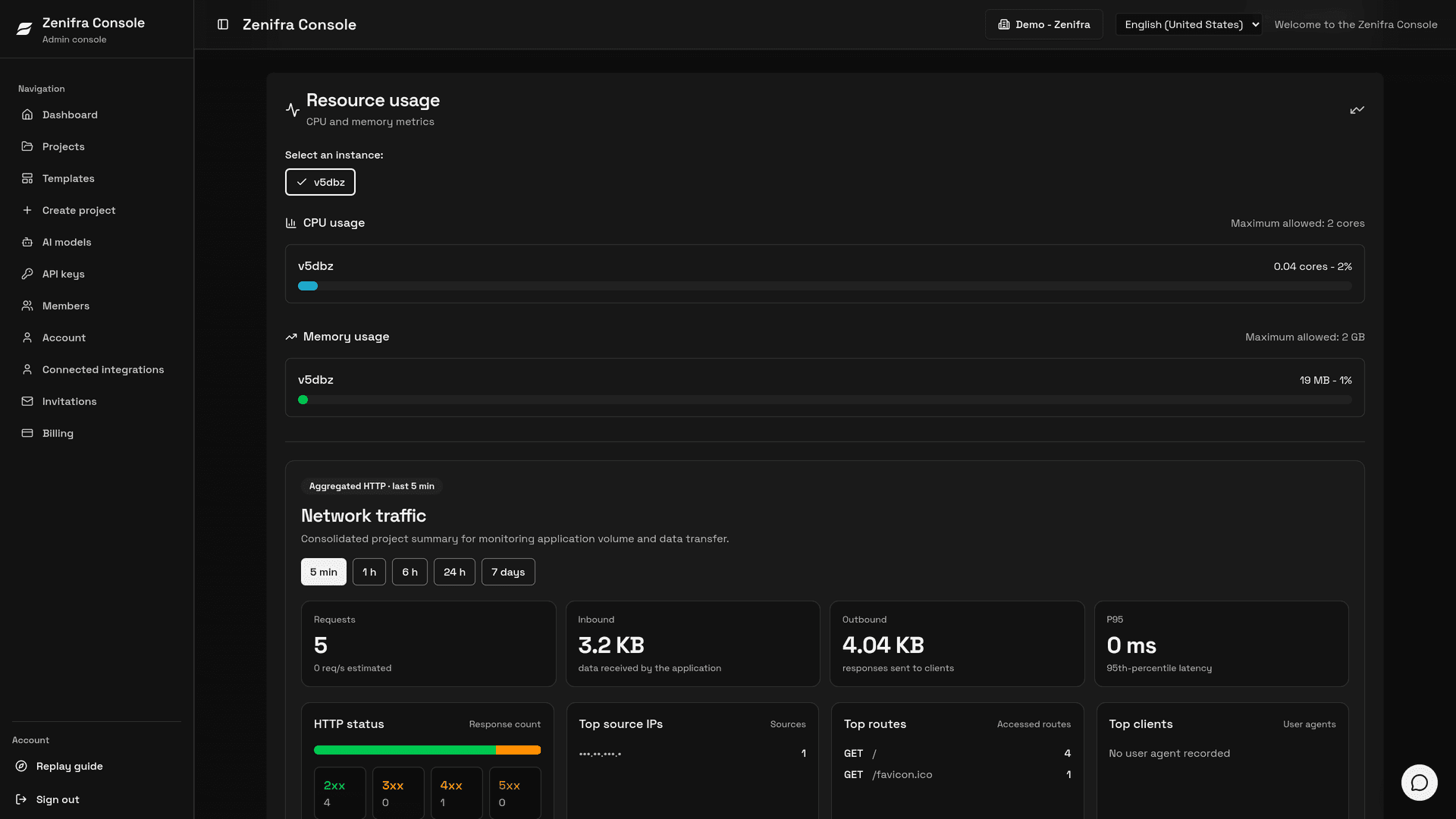
For Premium or higher projects, you can monitor:
CPU
- CPU usage per instance
- Comparison with the maximum limit allowed by the plan
RAM Memory
- Memory usage per instance
- Comparison with the maximum limit allowed by the plan
- Automatic formatting in MB or GB
HTTP Requests
- Number of requests that reached the application
- Useful for investigating traffic spikes and validating whether the project received calls after deployment
- Best used together with logs to understand behavior by time window
Network View
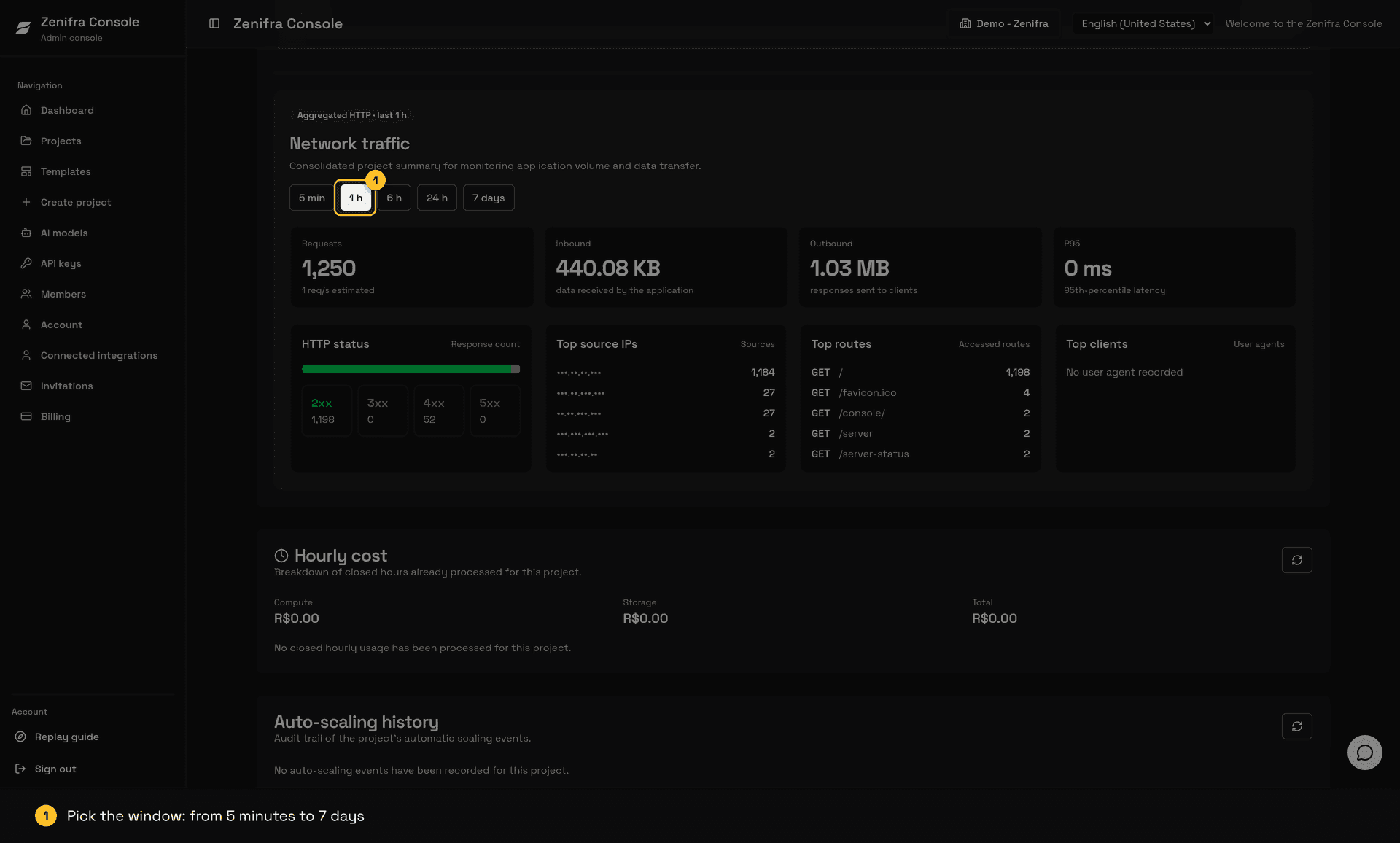
The Network traffic section shows an aggregated summary of the application's HTTP behavior. It helps you understand volume, most accessed routes, responses by status class, and clients that called the project most often.
You can switch between time windows:
| Period | When to use it |
|---|---|
| 5 min | Validate recent deployments, smoke tests, and immediate traffic |
| 1 h | Investigate short spikes or behavior after a change |
| 6 h | Follow incidents or variations during part of the day |
| 24 h | Review the day's operational behavior |
| 7 days | Identify recurring patterns and the week's most used routes |
In the main view, you can find:
- Requests: total HTTP calls in the selected period
- Inbound: amount of data received by the application
- Outbound: amount of data sent in responses
- P95: 95th percentile latency when available
- HTTP status: distribution across
2xx,3xx,4xx, and5xxresponses - Top routes: most accessed routes, including HTTP method and request count
- Top source IPs: IPs that called the project most often in the period
- Top clients: most frequent user agents in the period
- Request events: individual rows with raw source IP, method, sanitized route, status, latency, and user agent
You can also click a status class, such as 4xx or 5xx, to open a drill-down with routes, user agents, and request events associated with that response type. Use this drill-down to quickly find endpoints with errors, clients generating failures, involved source IPs, or high-impact routes.
Note: Network metrics and request events can take a few minutes to appear. Request events display raw source IPs to users with access to the project's metrics and are retained for up to 7 days. Zenifra does not store query strings or referrers in this view.
Instance Selection
When the project has multiple instances, you can select a specific instance to view logs and metrics.
Storage Usage (Premium plan or higher)
For Premium or higher projects, the storage section shows:
- Instance physical disk: consumed space, measured per instance
- Allocated logical capacity: the project's storage capacity
- % used: usage percentage
Storage values refresh automatically every 30 seconds while the section is open.
Next Steps
- How to Change HTTP Project Settings
- How to Create a Project
- Payment Settings
- Auto-scaling: the Auto-scaling history also appears on the project page
FAQ
Why can't I view the metrics?
Detailed metrics are available only for projects on Premium plans or higher. Hourly projects on paid plans can change plans on the edit page; Free projects cannot change plans, so create a new project on Premium or higher.
Logs are not loading. What should I do?
Check whether:
- the project is in "Running" status
- you have a Premium plan or higher
- the application is actually generating logs
Can I export logs?
At the moment, log export is not available. You can view logs directly in the console.
How often are metrics updated?
CPU and memory load when you expand the section; storage refreshes every 30 seconds and logs every 60 seconds. Network metrics and request events can take a few minutes to appear.
Last updated on