Required permissions
To create this project through the API, the user or organization API Key needs database.create on organization:*. After creation, use the returned project ID:
| Action | Minimum scope |
|---|---|
| Create PostgreSQL | database.create on organization:* |
| View the database project | project.read on project:<project-id> |
| View database status | database.status.read on database:<project-id> |
| View the connection | database.connection.read on database:<project-id> |
An owner user session has full access. For assistant or member, grant exactly the corresponding permission; an organization API Key uses the same format in permissions.resources. Creation does not require project.read, but automation that also reads the project needs that scope separately.
Prerequisites
To create a database on Zenifra, you need:
- A created and verified account
- Logged into the console
Accessing Project Creation
Video: creating a PostgreSQL database on the DB-Free plan, from the form to the running database page.
In the console sidebar, click Create project.
Step 1: Choose Project Type
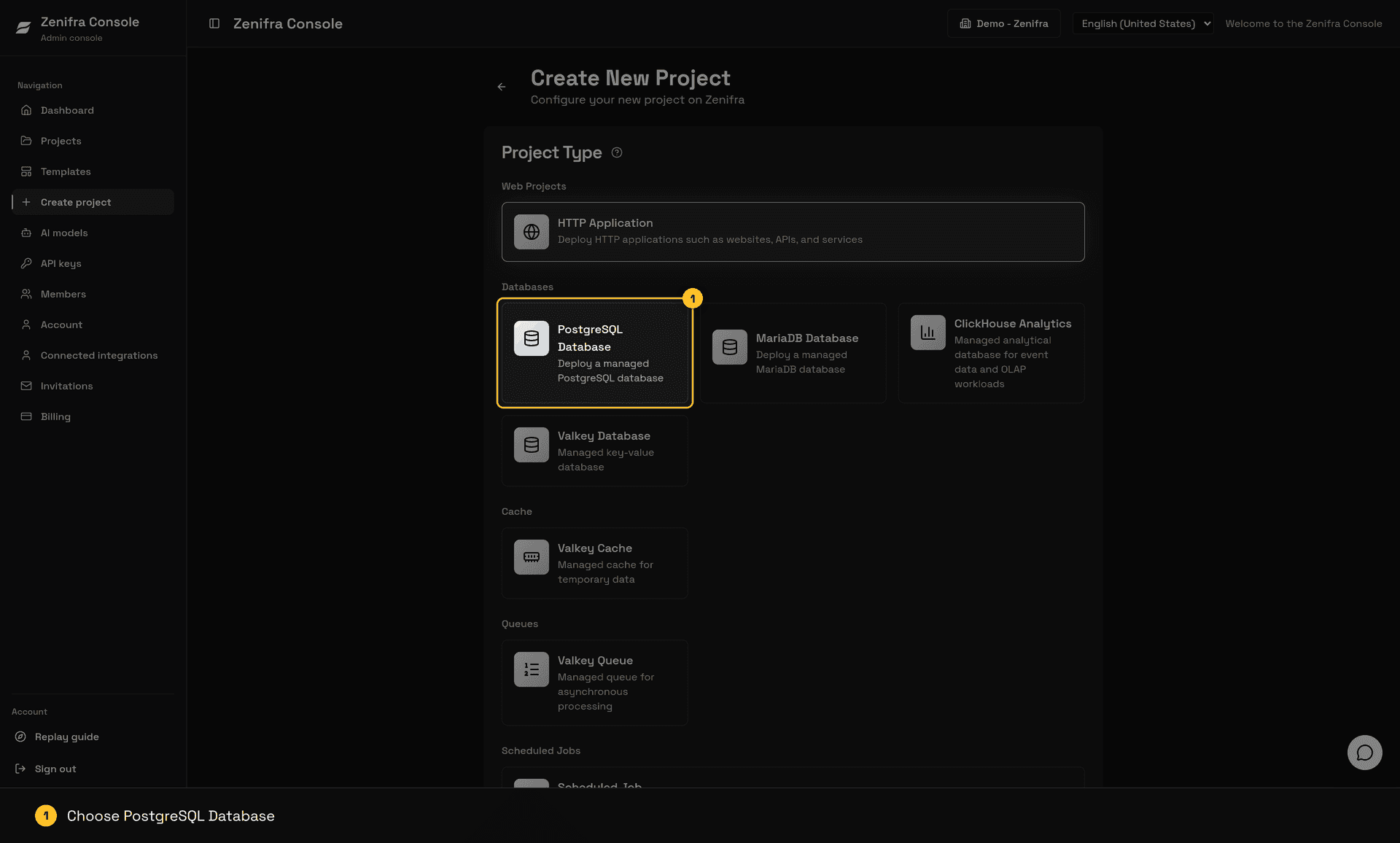
Zenifra offers different application types for deployment:
HTTP Application
If you need to host a web application, check our tutorial on how to create an HTTP project.
PostgreSQL Database
Creates a managed PostgreSQL database on Zenifra, with no need to configure or maintain the server.
What's included:
- Managed PostgreSQL on versions 15, 16, 17, and 18
- Automatic failover for projects with more than 1 instance
- Additional instances for high availability
- Connection with mandatory TLS, via URI or individual parameters
Available settings:
| Setting | Description |
|---|---|
| PostgreSQL Version | 15, 16, 17, or 18 |
| Instances | 1 to 3 (always 1 on db-free) |
| Storage | 1 to 250 GB (fixed at 1 GB on db-free) |
Connection:
After creation, you will receive the connection string in this format:
postgres://app:<password>@postgresql-<project-id>.managed.zenifra.com:<port>/app?sslmode=verify-full&sslrootcert=systemTip: Use this string in your HTTP application's
DATABASE_URLenvironment variable to connect to the database.
Step 2: Select Plan
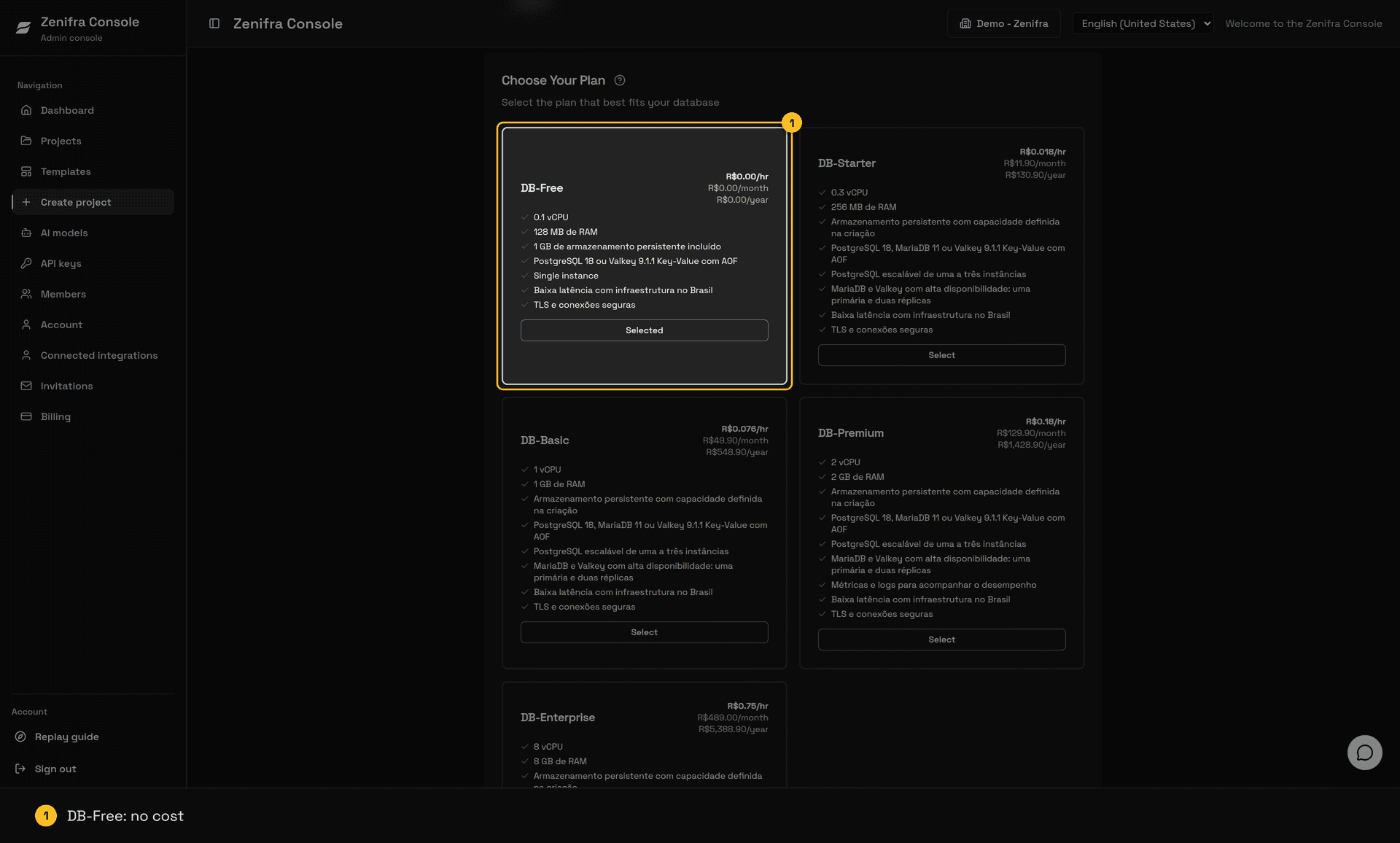
Plans define the available resources and pricing for your database. Each plan offers different levels of:
- CPU and memory
- Included storage (only on
db-free, 1 GB) - Allowed instance count
See vCPU, RAM, and per-instance prices in Database Plans. The db-free plan is limited to 2 active projects per organization.
Payment Models
Choose how you want to pay for your project:
| Model | Description | Ideal for |
|---|---|---|
| Hourly | Billed in proportion to usage time. The instance is charged only while the database is active. | Intermittent use projects, testing, development |
| Monthly | Fixed monthly price. Instance reserved for 30 days. | Applications that need to be always available |
| Yearly | Annual terms according to the active offer. Instance reserved for long-term projects. | Long-term projects |
Important: Database storage is persistent and is always charged, even when the database is stopped. The only thing not charged while the database is inactive is the instance cost!
Tip: With hourly payment, you can stop the database when you are not using it to stop paying for instances; storage is still charged.
Step 3: Configure Basic Information
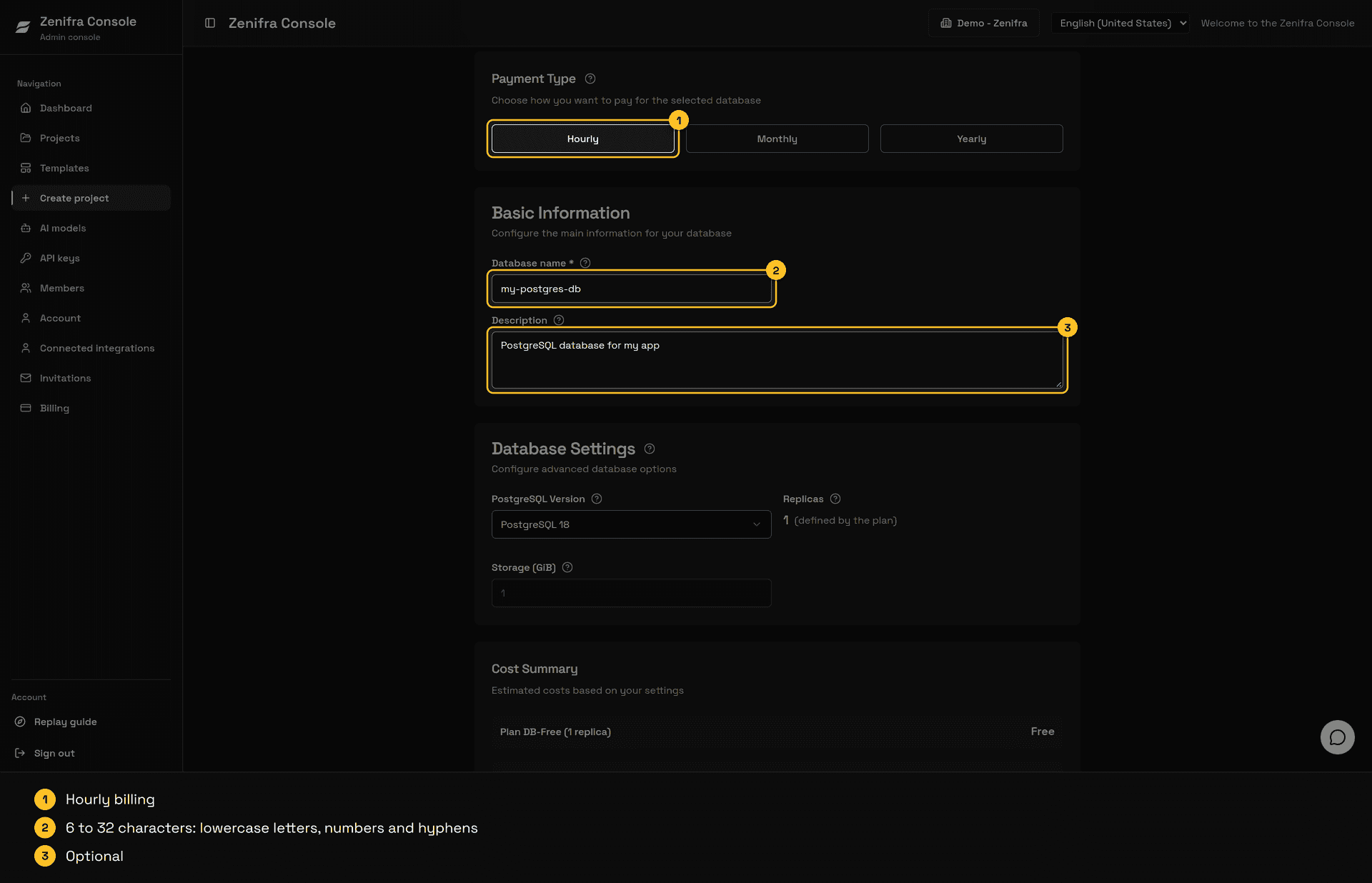
Project Name
The name is used for:
- Identifying your database on the dashboard
The connection address does not depend on the name: it uses the project ID (postgresql-<project-id>.managed.zenifra.com).
Name rules:
- Minimum: 6 characters
- Maximum: 32 characters
- Only lowercase letters, numbers, and hyphens
- Example:
my-database,production-db
Description
Optional field to add information about the project. Helps organize and identify projects when you have multiple ones.
Step 4: Configure the Database
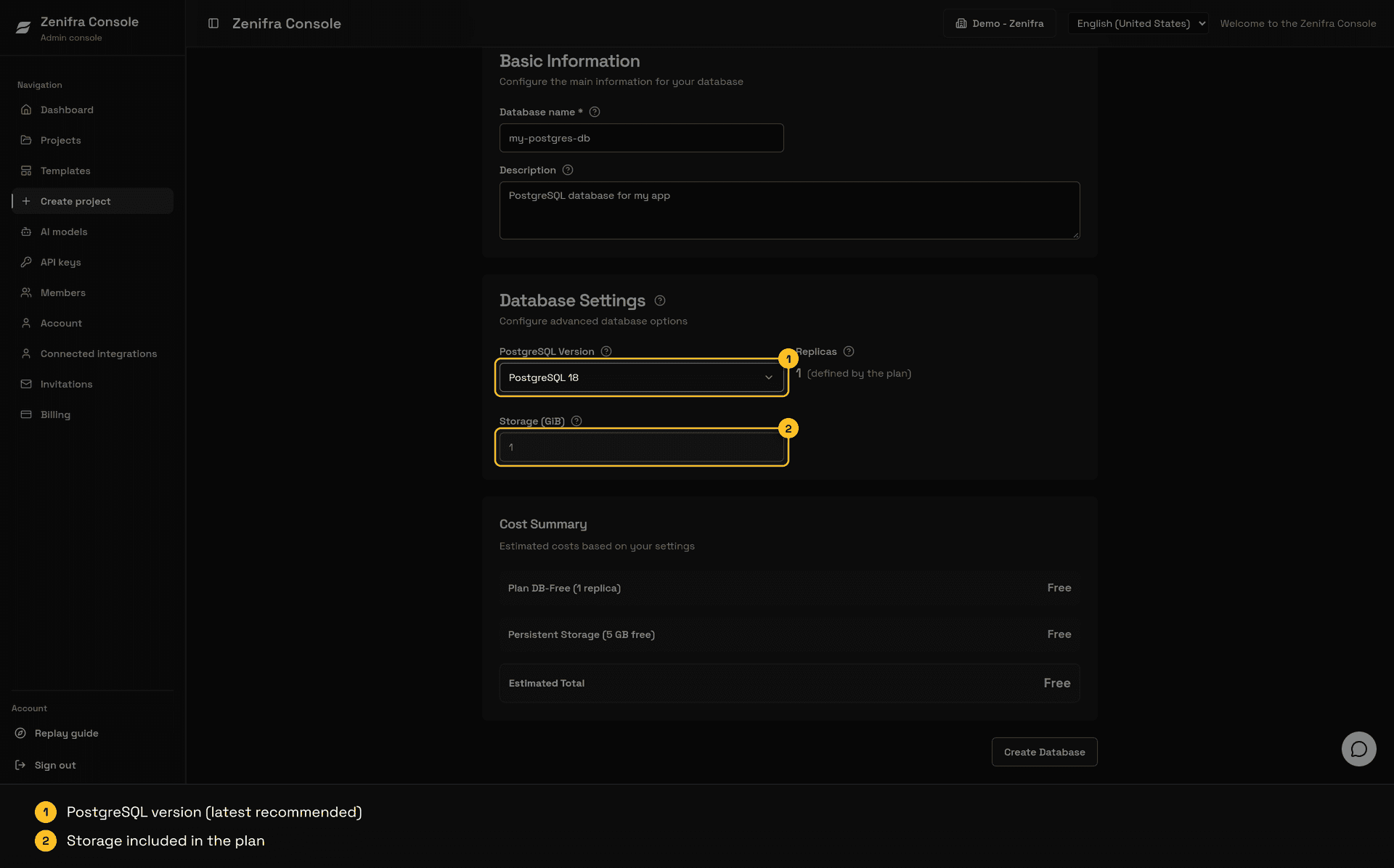
PostgreSQL Version
Choose the PostgreSQL version you want to use:
- PostgreSQL 15
- PostgreSQL 16
- PostgreSQL 17
- PostgreSQL 18
Recommendation: For new projects, it is recommended to use the latest version (18) to ensure access to the latest features and security fixes.
User, password, and database
You do not set the username, password, or database name at creation:
username:appdatabase name:app- password: generated by the platform and shown only once, at the end of creation
Important: Copy the password (or the full connection string) as soon as the project is created and keep it in a safe place. Afterward, the console shows the URI with a masked password; if you lose the password, generate a new one in the project edit page.
Step 5: Configure Instances
Number of Instances
Total number of database instances:
- 1 instance: Ideal for testing or development (the only option on
db-free) - 2 or 3 instances: Recommended for production, with automatic failover and read replicas
Each instance is charged at the plan price, and storage is charged per GB on each instance.
Recommendation:
- Production: Use 2 or 3 instances so a replica can take over if the primary instance fails.
- Testing/Development: Use 1 instance to reduce costs.
Step 6: Configure Storage
Storage Capacity
- Minimum: 1 GB
- Maximum: 250 GB
db-free: fixed at 1 GB, cannot be changed later
Warning: For hourly payment models, storage can only be increased, never decreased. For monthly or yearly contracts, storage cannot be modified after project creation.
Important: Database storage is charged even when the project is stopped (not running).
Step 7: Complete Creation
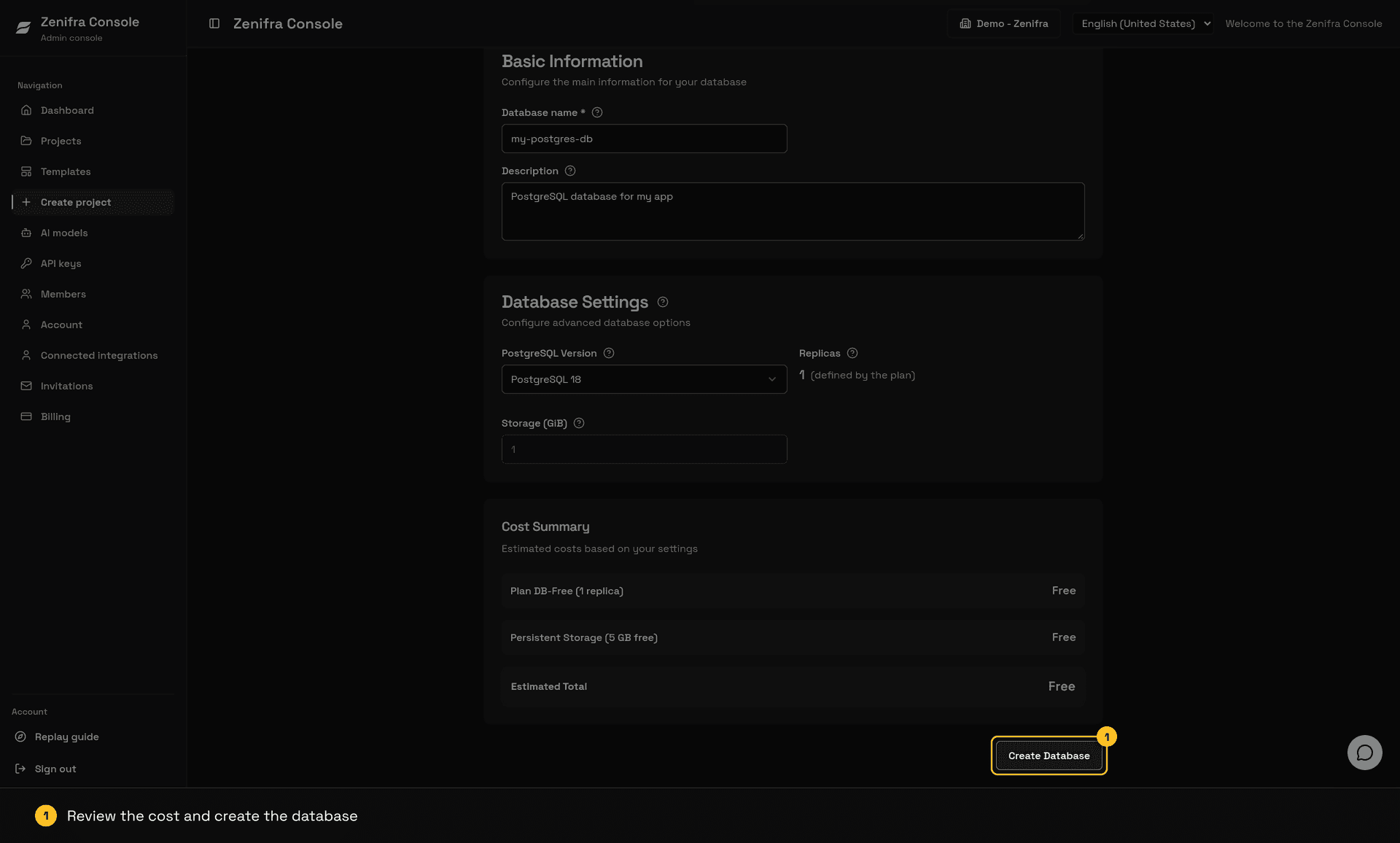
- Review all configurations
- Click "Create Project"
- Wait for the database to be provisioned
After Creation
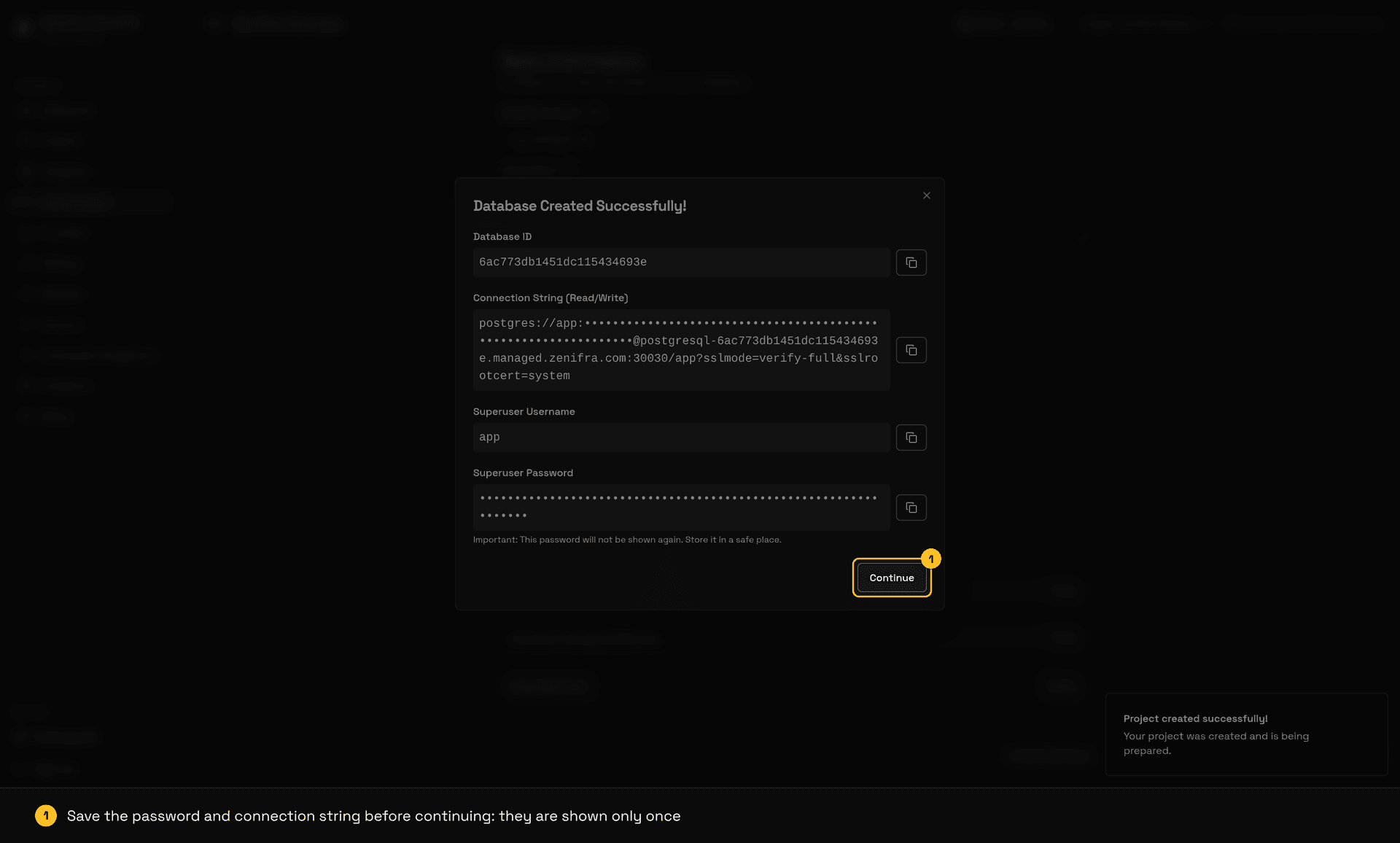
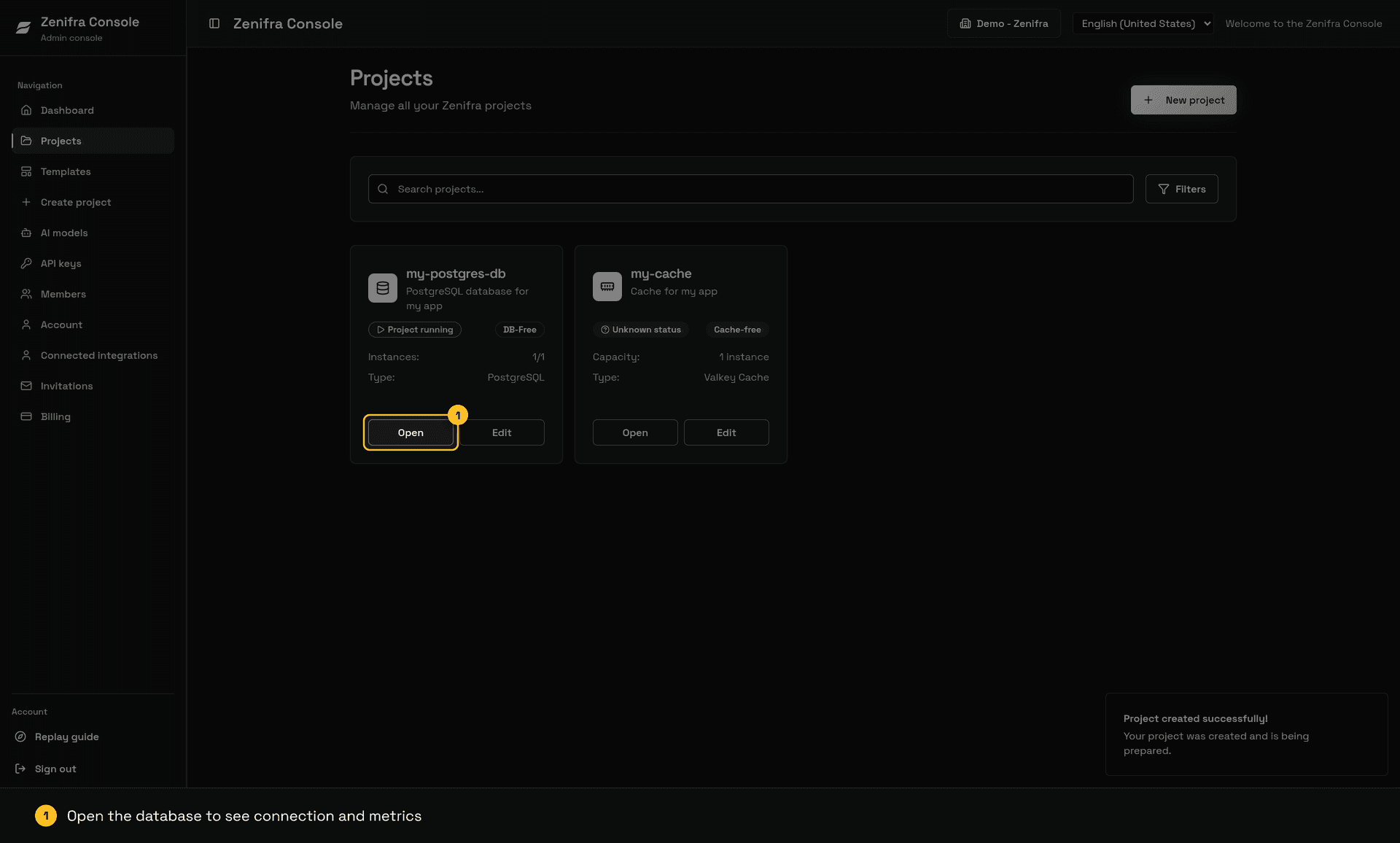
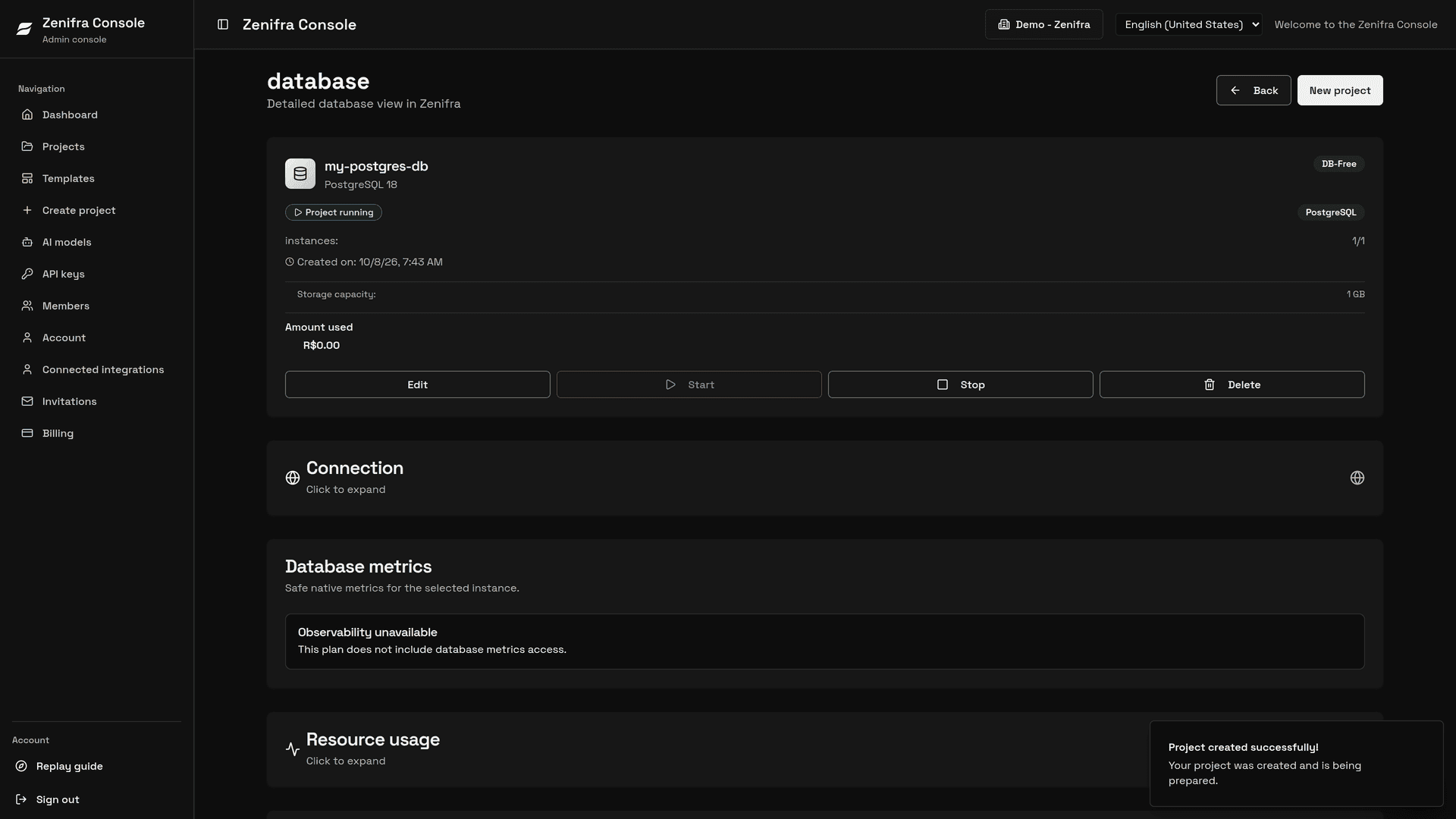
You will receive:
- Project ID: Unique identifier for your database
- Connection String: Complete URI to connect to the database, with the password shown only on this screen
- Read-only Connection String: when the database has 2 or 3 instances
Keep the connection string in a safe place! It contains your database credentials and will not be shown again with the password.
Next Steps
FAQ
Can I change the plan after creating the database?
Depends. If the payment model is hourly, you can change the plan in the project edit page. On monthly or yearly contracts, the plan cannot be changed during the contract. db-free cannot be switched to another plan.
How do I connect to the database?
Use the connection string provided after creation. The connection requires TLS with certificate validation (sslmode=verify-full). You can connect via:
- Web applications (Node.js, Python, Java, etc.)
- PostgreSQL clients (pgAdmin, DBeaver, etc.)
- Command line (psql)
Can I have multiple databases?
Yes! You can create multiple database projects in the same organization. Each database is billed independently. On the db-free plan, the limit is 2 active projects per organization.
How do I back up my database?
Zenifra does not currently provide automatic backups or console restore. Export your data periodically with pg_dump, store the copies outside the project, and test restores.
What happens if the primary instance fails?
For projects with more than 1 instance, automatic failover occurs:
- A replica is promoted to primary
- The connection keeps the same host and port
- Open connections can be closed during the switch; configure your application to reconnect automatically
With 1 instance there is no replica to take over.
How do I delete a database?
- Go to the specific project page
- Click Delete
- Confirm the action
Warning: This action is irreversible! All data and configurations will be permanently deleted, and there is no platform backup. Export your data with
pg_dumpbefore deleting.
Last updated on
How to Start MariaDB on Zenifra via Console
Learn how to create your managed MariaDB database on Zenifra with version, storage, and connection through the console.
MariaDB Metrics and Insights
Interpret connections, activity, read cache, locks, latency, storage, and replication in MariaDB native metrics on Zenifra.