Invite Members to an Organization
Invitations let you add people to an organization without sharing credentials. Each user signs in with their own Zenifra account and receives an initial role and, when needed, granular permissions.
Use invitations to include developers, operators, billing owners, support users, or any collaborator who needs access to organization projects and resources.
Prerequisites
Before inviting someone, check that:
- you are in the correct organization in the console;
- the email belongs to the person who should receive access;
- your user has permission to invite members;
- the selected role matches the person's responsibility;
- sensitive permissions, such as billing and environment variables, are granted only when required.
Required permissions
To invite members or change permissions through the API, use an authorized user session. These routes are user-only in the current contract and do not accept organization API Keys:
| Action | Minimum scope for a non-owner user |
|---|---|
| Invite a member | member.invite on organization:* |
| Change permissions or policies | member.permissions.update on organization:* |
An owner does not need to configure manual grants. Organization API Keys should receive 403/401 on these routes; do not use these scopes as API key operational permissions.
The owner can invite people with the assistant or member role. An assistant with member.invite can invite only people with the member role and can grant only permissions and policies they already have.
Step 1: Open the organization
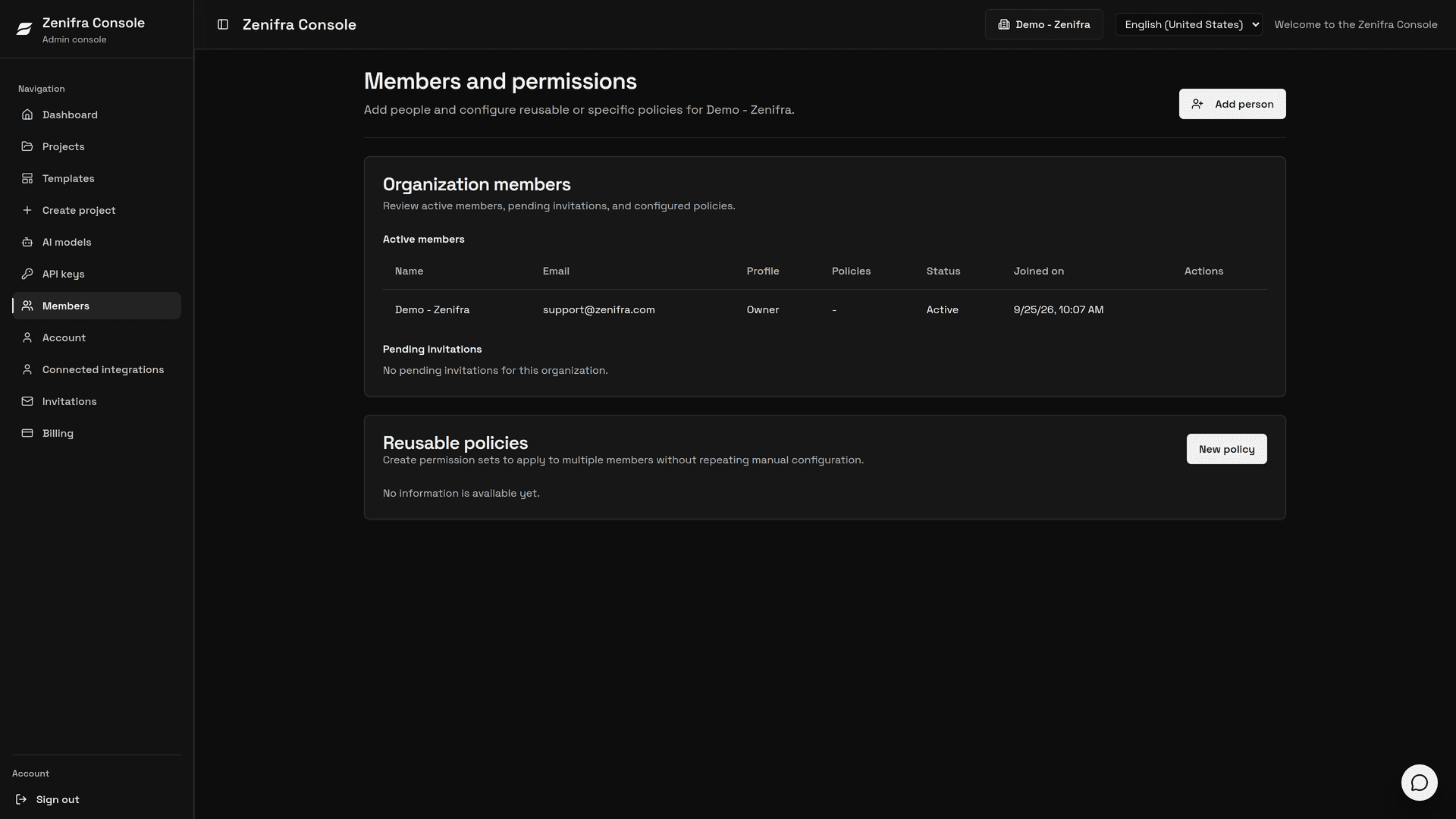
- Sign in to console.zenifra.com.
- Select the target organization in the organization selector.
- Open Members in the sidebar and click Add person.
- Confirm that the active organization name is the workspace where the person should collaborate.
This check prevents inviting users to the wrong environment, especially when you participate in multiple organizations.
Step 2: Enter email and role
Enter the user's email and choose the initial profile (role). In the same invitation, you can attach reusable policies and set direct permissions.
| Role | When to use |
|---|---|
| Assistant | For someone who should operate projects and help administer the organization |
| Member | For limited access to projects, databases, logs, metrics, or specific resources |
Avoid using assistant as the default for every collaborator. For people who only need to work on one project or view specific information, use member with granular permissions.
Step 3: Send the invitation
When you send the invitation, Zenifra registers the member with the invited status and sends an email to the invited person. The invitation remains pending until the invited person accepts or rejects it.
Possible statuses:
| Status | Meaning |
|---|---|
| invited | Invitation sent and still pending |
| active | User accepted the invitation and participates in the organization |
| removed | Access removed or invitation rejected |
If the user already exists in Zenifra, the invitation can be associated with the existing account. If not, the invited email will be used to link access when the person signs in with the matching account.
Step 4: Track pending invitations
Pending invitations appear in the Pending invitations section of the Members page. Currently, the inviter cannot cancel a pending invitation: it only stops being pending when the person accepts or rejects it. Because of that, double-check the email before sending.
Good practices:
- confirm the email before sending the invitation;
- if an invitation is accepted by mistake, the
ownercan remove the member afterwards; - ask the
ownerto adjust the role if the person's responsibility changed; - document internally why each person needs access.
Step 5: Guide the invited person
The invited person should access Zenifra with the same email used in the invitation, open Invitations in the sidebar, and accept or reject participation in the organization. After accepting, the organization appears in the console organization selector.
If the user cannot see projects or resources after accepting, review the granted permissions. Organization access does not mean automatic access to every project.
Next steps
FAQ
Can I invite someone who does not have an account yet?
Yes. The invitation is sent to the provided email and appears for the person once they create an account and access Zenifra with that email.
Does an invitation grant access to all projects?
Not necessarily. Access depends on the member's role and granular permissions.
Can I remove a pending invitation?
Not at the moment. A pending invitation remains until the invited person accepts or rejects it. If the invitation is accepted and the access is no longer needed, the owner can remove the member on the Members page.
Who can remove members or change roles?
Only the owner. When a member is removed, the organization API Keys they created are revoked as well.
Last updated on
Organizations in Zenifra
Learn how organizations group accounts, projects, members, and permissions in Zenifra for individual or team work.
Granular Permissions in Organizations
Configure permissions by member, resource, and action, directly or with reusable policies, to protect projects, databases, billing, Git sources, AI keys, and global API keys.