App protection
App protection decides who reaches your application and how that traffic arrives. The rules are applied at Zenifra's entry, before the request reaches your instances, and apply to the platform address (*.clients.zenifra.com), to www and to the root of your own domain, with no need for Cloudflare.
This page explains every field of the Protection card in Edit project. Each field has: what it does, accepted values, examples, use cases, what the visitor sees, common mistakes and how to test it. The ? icon next to each field in the console takes you straight to its section.
| Field in the console | What it does | Limit |
|---|---|---|
| Only trusted IPs can access | When on, only the Trusted IPs open the application; everyone else gets 404 | On or off |
| Trusted IPs | Skip every rule | Up to 200 (up to 10 with the switch above on) |
| Blocked IPs | Get 403 | Up to 200 |
| What to do with the chosen countries | Block these or Allow only these | 2 modes |
| Countries | The countries of the rule | Up to 50 |
| Bots and tools | Ready-made bot categories | 4 categories |
| Custom terms | Blocks requests whose browser user agent contains the term | Up to 20 terms |
| Exempt paths | Skip countries, bots and the challenge | Up to 10 paths |
| Route limits | Refuses an IP's excess requests with 429 | Up to 5 limits |
| Path · Methods · Rate · Burst | Fields of each limit | Burst from 0 to 100 |
| What to cache | Keeps responses at Zenifra's entry | 3 modes |
| Clear cache now | Discards everything that is cached | Up to 5 times per minute |
| Under attack mode | Challenges every browser before the page | On or off |
| Challenged paths | Challenges only some paths | Up to 10 paths |
Availability
Available on the Premium Plus and Business plans. On other plans, the Protection card shows the plan notice and the See plans button, and the sections show as locked with the Premium Plus badge.
If the project moves to a plan without Protection, the rules stay saved but stop applying. When it goes back to Premium Plus or Business, they apply again with no need to set them up again.
Protection applies only to public HTTP projects. Private projects and previews do not go through the rules.
How to set it up
- In the side menu, click Projects and open the HTTP project.
- Open Edit project and go to the Protection card.
- Fill in the fields you want to use. Fields left empty do nothing.
- Click Save protection. The button saves every field at once and only shows when something changed.
- If the new rules can block your own IP, the console opens the You may lose access to the application warning. Click Cancel to review or Save anyway.
The rules take effect in 1 to 2 seconds, without restarting the instances. If the application is not running yet, the console shows Rules saved. They take effect once the application is running.
If you block your own access, the console keeps working, because the rules apply only to the application. Go back to the Protection card, fix the rule and save.
How to test with curl
Every test on this page uses curl and the example address https://seu-app.clients.zenifra.com. Replace it with your project address or your own domain. The command below shows only the response code:
curl -s -o /dev/null -w '%{http_code}\n' https://seu-app.clients.zenifra.com/| Code | Who answered |
|---|---|
404 with the "Application not found" page | Only trusted IPs can access |
403 with the "Access blocked by the site owner" page | Blocked IPs, Countries or Bots and tools |
302 to /.zenifra/challenge | Anti-bot challenge |
429 with the "Too many requests in a short time" page | Route limits |
| Any other | Your application |
The Visitors page shows, in the Blocks card, how many requests each rule stopped.
Restricted access
Restricted access closes the application to everyone except the IPs on the Trusted IPs list. It is made of two fields: the Only trusted IPs can access switch and the Trusted IPs list.
| Switch | IP on the Trusted IPs list | IP not on the list |
|---|---|---|
| Off | Skips every rule | Goes through the other rules (blocked IPs, countries, bots, limits and challenge) |
| On | Skips every rule | Gets 404 "Application not found" |
This option replaces the former Network Control allowlist. The rules you already had keep working and show up here.
Only trusted IPs can access
What it does: when on, only the IPs on the Trusted IPs list open the application; everyone else gets the "Application not found" page (404), as if the application did not exist. When off, any IP can access, except the Blocked IPs.
Accepted values:
- On or off. The default is off.
- When on, the Trusted IPs list needs 1 to 10 entries.
- The list does not accept
0.0.0.0/0or::/0. To open the application to everyone, turn the switch off.
Examples:
| Switch | Trusted IPs | Result |
|---|---|---|
| On | 203.0.113.10/32 (Office) | Only the office opens the application |
| On | 203.0.113.10/32 (Office) and 198.51.100.0/24 (Company VPN) | The office and anyone connected to the VPN |
| On | 2001:db8:4a1c:10::/64 (Home network, IPv6) | Any device on your home IPv6 network |
| Off | 192.0.2.50/32 (Monitor) | Everyone can access; the monitor only skips the other rules |
Use cases:
- Admin panel or internal tool (a Metabase, an n8n, an in-house admin): turn the switch on and trust the office IP and the VPN range. Anyone trying from outside gets 404 and does not even learn the panel exists.
- Client staging environment: trust your team's IP and the client's IP while they approve the release. After approval, turn the switch off.
- API used by a single partner: trust the outbound IPs of the partner's server, which they give you, and turn the switch on.
What the visitor sees: anyone not on the list gets the 404 code with the "Application not found" page. Anyone on the list sees the application normally.
Common mistakes:
- Trusting only the IPv4 address. If your internet provider or mobile network uses IPv6, the browser connects through the IPv6 address, which does not match the
/32. Use Add my IP, which adds the IPv4 and IPv6 addresses you are connecting from, or trust the/64range of your IPv6 network. - Home IP that changes. Many providers change residential IPs from time to time. For people working from home, prefer a VPN with a fixed IP and trust only the VPN IP.
- Forgetting the uptime monitor and the webhooks. With the switch on, the monitor and the services that call your application also get 404. Trust their IPs or keep the switch off.
- Turning the switch on without your IP on the list. The console warns you and asks for confirmation, but if you confirm, you can no longer open the application. The console stays reachable so you can fix it.
The HTTPS certificate of your own domain keeps being issued and renewed with the switch on: the certificate validation path always gets through.
How to test:
# From an IP on the list: your application's code (200, for example)
curl -s -o /dev/null -w '%{http_code}\n' https://seu-app.clients.zenifra.com/

# From another network (your phone's mobile data, for example): 404
curl -s -o /dev/null -w '%{http_code}\n' https://seu-app.clients.zenifra.com/

# Force IPv4 or IPv6 to check both entries
curl -4 -s -o /dev/null -w '%{http_code}\n' https://seu-app.clients.zenifra.com/
curl -6 -s -o /dev/null -w '%{http_code}\n' https://seu-app.clients.zenifra.com/
Trusted IPs
What it does: the IPs on this list skip every Protection rule: blocked IPs, countries, bots, route limits and the anti-bot challenge. With the Only trusted IPs can access switch on, they are also the only ones that open the application.
Accepted values:
- An IP or a block in CIDR notation, always with the prefix:
/32for a single IPv4 address and/128for a single IPv6 address. Examples:203.0.113.10/32,198.51.100.0/24,2001:db8::1/128,2001:db8:4a1c::/48. - IPv4 with a prefix from
/0to/32and IPv6 with a prefix from/0to/128. IPv6 addresses can be written in short form, in upper or lower case; Zenifra stores the short lower-case form. - Each entry needs a description of up to 256 characters, such as "Office" or "Monitor".
- Up to 200 entries with the switch off, and up to 10 with it on.
- Does not accept
0.0.0.0/0or::/0, because that would let every visitor through. - Add my IP adds the IPv4 and, if there is one, the IPv6 address you are connecting from.
Examples:
| CIDR | Description | Covers |
|---|---|---|
203.0.113.10/32 | Office | A single IPv4 address |
198.51.100.0/24 | Company VPN | 256 addresses, from 198.51.100.0 to 198.51.100.255 |
2001:db8::1/128 | Partner server | A single IPv6 address |
2001:db8:4a1c:10::/64 | Home network | A whole IPv6 network, like a home router's |
Use cases:
- Uptime monitor that uses curl or a script: trust the monitor's IP so it is not stopped by Tools and scripts, by a route limit or by the challenge.
- Your team's load tests: trust the IP of the machine running the test to measure the application without getting 429.
- Partner in another country with the country filter on: trust the partner's outbound IPs instead of opening the whole country.
- Internal panel: trust the office and turn on Only trusted IPs can access.
What the visitor sees: a trusted IP sees the application normally, with no block page, no 429 and no challenge.
Common mistakes:
- Thinking that trusting an IP closes the application to others. With the switch off, the list closes nothing: it only lets these IPs skip the rules. To close it, turn on Only trusted IPs can access.
- Typing the IP without the prefix.
203.0.113.10is not accepted; write203.0.113.10/32. - Leaving a row without a description. The console shows "Enter a valid CIDR and a description for every rule." and does not save.
- Trusting a range that is too wide.
100.64.0.0/10or a mobile carrier range trusts thousands of people, who then skip every rule. - IP on both lists. An IP that is in Trusted IPs and in Blocked IPs gets through: the trusted IP wins.
How to test:
# With "Tools and scripts" checked: your trusted IP gets through, even with curl
curl -s -o /dev/null -w '%{http_code}\n' https://seu-app.clients.zenifra.com/

# With a limit on /login: no 429 from the trusted IP
for i in $(seq 1 30); do curl -s -o /dev/null -w '%{http_code} ' -X POST https://seu-app.clients.zenifra.com/login; done; echo
Blocking by IP
Blocks specific addresses or networks, even with restricted access off. This is the former Network Control blocklist.
Blocked IPs
What it does: the IPs on this list are denied access (403) on every path of the application, including the exempt paths.
Accepted values:
- The same format as the Trusted IPs: IPv4 or IPv6 in CIDR, always with the prefix, and a description of up to 256 characters.
- Up to 200 entries.
- Does not accept
0.0.0.0/0or::/0. To close the application to everyone, use Only trusted IPs can access. - The Block button on the Visitors page adds the IP here, as
/32(IPv4) or/128(IPv6).
Examples:
| CIDR | Description |
|---|---|
198.51.100.23/32 | IP that tried passwords on /login |
203.0.113.0/24 | Network an attack came from |
2001:db8:bad::/48 | IPv6 range of a persistent bot |
2001:db8:1:2::/64 | A single IPv6 device, which changes the end of its address |
Use cases:
- Block someone brute-forcing passwords: check Top source IPs on the Visitors page and click Block on the suspicious IP.
- Stop a content scraper that changes its user agent but not its network: block its
/24(IPv4) or/48(IPv6) range. - Cut off a former partner whose fixed IP you know.
What the visitor sees: the 403 code with the "Access blocked by the site owner" page.
Common mistakes:
- Blocking a single IPv6 address with
/128. IPv6 devices change the end of their address often. For an IPv6 visitor, block their/64. - Blocking a company or mobile network IP. Many people can share the same IP (company network, mobile carrier). All of them are blocked.
- Blocking your own IP. The console warns you: "Your IP ... is on the blocked IP list". The console stays reachable so you can remove the row.
- Thinking an exempt path lets a blocked IP through. It does not: the IP block applies to every path.
How to test:
# From the blocked IP: 403 and the title of the block page
curl -s -o /dev/null -w '%{http_code}\n' https://seu-app.clients.zenifra.com/
curl -s https://seu-app.clients.zenifra.com/ | grep -o '<title>[^<]*'

# From another IP: your application's code
curl -s -o /dev/null -w '%{http_code}\n' https://seu-app.clients.zenifra.com/
Countries by location
Filters visitors by the country of their IP. The country comes from an IP geolocation database, the same one used by the Visitors page.
What to do with the chosen countries
What it does: sets what happens to the countries on the Countries list.
Accepted values:
| Option | Effect |
|---|---|
| Block these (default) | The countries on the list get 403; the others can access |
| Allow only these | Only the countries on the list can access; all others get 403 |
With an empty list, the mode does nothing. A visitor whose country cannot be identified is never blocked, in either mode.
Examples:
- Block these with
RUandKP: Russia and North Korea get 403. - Allow only these with
BR: only visitors from Brazil can access. - Allow only these with
BR,PT,AOandMZ: a site for Portuguese-speaking countries.
Use cases:
- Store that only ships within Brazil and gets purchase attempts with foreign cards: Allow only these with Brazil, plus the exempt paths of the payment provider's webhooks.
- Attack coming from a country where you have no customers: Block these with that country, while the attack lasts.
- City hall or public agency system that serves only Brazil: Allow only these with Brazil.
What the visitor sees: the 403 code with the "Access blocked by the site owner" page.
Common mistakes:
- Allowing only Brazil blocks Google. Googlebot crawls mostly from the United States. See the recipe Brazil-only site that keeps webhooks and Google.
- Allowing only Brazil blocks webhooks from abroad. Services such as Stripe, Mercado Pago and GitHub may send notifications from servers outside the country. Add the route to Exempt paths, such as
/webhooks. - Brazilians traveling or using a foreign VPN start getting 403.
- Blocking the country you are in. The console warns you when you block from Visitors; on the list, check before saving.
- Trying to block a country from Visitors in Allow only these mode. The button does not show in that mode; edit the list here.
How to test: the country comes from the IP, so the test must run from a machine or VPN in that country:
# From a machine or VPN in a blocked country (or off the list, in Allow only these mode): 403
curl -s -o /dev/null -w '%{http_code}\n' https://seu-app.clients.zenifra.com/

# The exempt path keeps answering, even from the blocked country
curl -s -o /dev/null -w '%{http_code}\n' -X POST https://seu-app.clients.zenifra.com/webhooks/stripe
On the Visitors page, the Countries card shows where visits come from before you block.
Countries
What it does: the list of countries used by the mode chosen in What to do with the chosen countries.
Accepted values:
- Countries picked in Add country, searching by name ("Search country by name"). Each country becomes a tag with its flag; the X removes it.
- Up to 50 countries.
- Through the API, countries are 2-letter upper-case ISO codes, such as
BR,USandPT.
Examples:
| List | With Block these | With Allow only these |
|---|---|---|
| Brazil | Brazil gets 403 | Only Brazil can access |
| Brazil, Portugal | Both get 403 | Only both can access |
| Russia, China, North Korea | All three get 403 | Only those three can access |
Use cases:
- Block the country an attack comes from, seen in the Countries card of the Visitors page (the Block button there adds the country here).
- Restrict a system to Brazil and Portugal, where the company has branches.
- Allow only the countries your store ships to.
What the visitor sees: 403 with the "Access blocked by the site owner" page when the country is blocked.
Common mistakes:
- Changing the mode and forgetting the list. The same Brazil list means "block Brazil" in one mode and "only Brazil" in the other. Check the mode before saving.
- Relying on the country as the only defense. VPNs and proxies change the apparent country. Use the country filter to reduce noise, not as a login.
How to test: see What to do with the chosen countries.
Bots and tools
Blocks requests by the browser user agent (the User-Agent header), which every bot, browser or tool sends.
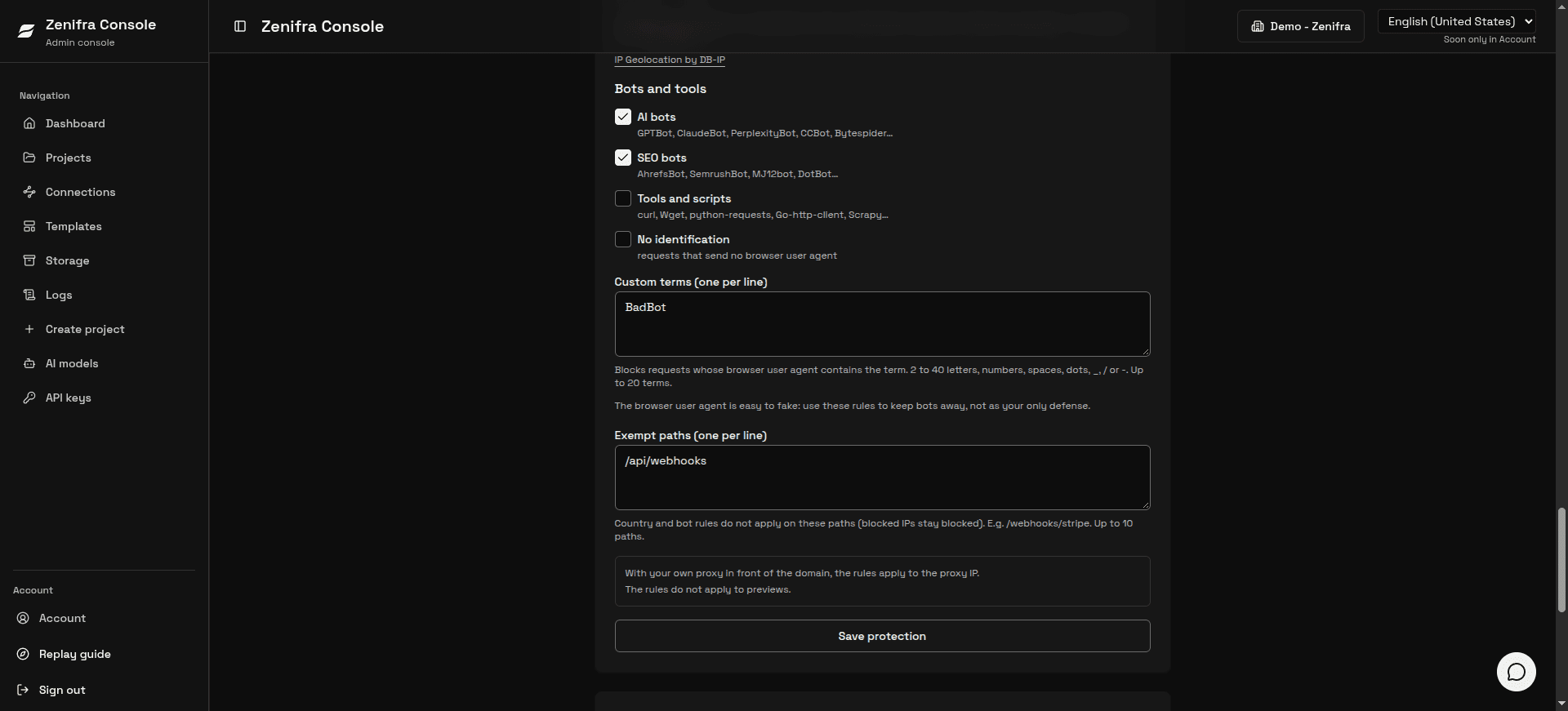
Ready-made categories
What it does: each checked category blocks (403) requests whose browser user agent contains one of its names.
Accepted values: check any combination of the four categories:
| Category | Blocks requests whose browser user agent contains |
|---|---|
| AI bots | GPTBot, ClaudeBot, anthropic-ai, CCBot, Bytespider, PerplexityBot, Amazonbot, meta-externalagent |
| SEO bots | AhrefsBot, SemrushBot, MJ12bot, DotBot, PetalBot, BLEXBot, DataForSeoBot |
| Tools and scripts | curl, Wget, python-requests, python-httpx, aiohttp, Go-http-client, libwww-perl, Scrapy, HeadlessChrome |
| No identification | Requests without a browser user agent (empty or missing header) |
The match looks for the name anywhere in the user agent, ignoring case. No category includes Googlebot, Bingbot, mobile apps (such as okhttp, Dart and axios) or webhook senders (Stripe, GitHub, Mercado Pago).
Examples:
Mozilla/5.0 (compatible; GPTBot/1.2; +https://openai.com/gptbot)is blocked by AI bots.curl/8.5.0andpython-requests/2.32.3are blocked by Tools and scripts.Mozilla/5.0 (compatible; AhrefsBot/7.0; +http://ahrefs.com/robot/)is blocked by SEO bots.Mozilla/5.0 (compatible; Googlebot/2.1; +http://www.google.com/bot.html)gets through every category.
Use cases:
- Keep AI bots from copying your content: check AI bots. Google keeps indexing.
- Save resources on SEO bots that crawl the whole site every day: check SEO bots.
- Stop simple scrapers written with curl, Python or Go: check Tools and scripts and No identification.
What the visitor sees: 403 with the "Access blocked by the site owner" page.
Common mistakes:
- Blocking Tools and scripts blocks your own curl monitor, deploy scripts that call the application and integrations written in Python or Go. Trust their IPs in Trusted IPs or add the route to Exempt paths.
- No identification blocks old integrations that send no browser user agent, such as some webhooks and devices (printers, cameras, time clocks). Test first or use exempt paths.
- Thinking bot blocking is foolproof. The browser user agent is easy to fake: a scraper can claim to be Chrome. For persistent ones, use Blocked IPs, Route limits or the anti-bot challenge.
How to test:
# AI bots checked: 403
curl -s -o /dev/null -w '%{http_code}\n' -A 'GPTBot/1.2' https://seu-app.clients.zenifra.com/

# Tools and scripts checked: plain curl gets 403
curl -s -o /dev/null -w '%{http_code}\n' https://seu-app.clients.zenifra.com/

# No identification checked: -A '' removes the user agent and gets 403
curl -s -o /dev/null -w '%{http_code}\n' -A '' https://seu-app.clients.zenifra.com/

# A regular browser gets through
curl -s -o /dev/null -w '%{http_code}\n' -A 'Mozilla/5.0 (Windows NT 10.0; Win64; x64) Chrome/131.0 Safari/537.36' https://seu-app.clients.zenifra.com/
Custom terms (one per line)
What it does: blocks (403) requests whose browser user agent contains the term anywhere. Use it for bots that are not in the ready-made categories.
Accepted values:
- One term per line, 2 to 40 characters long.
- Unaccented letters, numbers, spaces and the symbols
.,_,/and-. - Up to 20 terms. Repeated terms are dropped, ignoring case.
- The match is plain text, ignoring case. It is not a regular expression:
*,^and|are not accepted.
Examples:
OAI-SearchBot
ChatGPT-User
Diffbot
PostmanRuntime
Java/1.8
Use cases:
- Complete the AI block with bots that are not in AI bots, such as
OAI-SearchBot,ChatGPT-UserandDiffbot. - Block one specific tool, such as
PostmanRuntime, without checking the whole Tools and scripts category. - Stop a scraper that leaves its own name in the browser user agent, seen in the logs or on the Visitors page.
What the visitor sees: 403 with the "Access blocked by the site owner" page.
Common mistakes:
- Term too short.
botblocks Googlebot and Bingbot;goblocks everything with "Google";Mozillablocks almost every browser. Use the bot's full name. - Using a regular expression, such as
.*bot.*. The*is not accepted and the console shows "Check: .bot.". Write the bot's name as plain text. - Thinking Google-Extended is a bot. It does not show in the browser user agent: to keep Google from using your content for AI without leaving search, use
robots.txt.
How to test:
# Term OAI-SearchBot: 403 (any combination of upper and lower case)
curl -s -o /dev/null -w '%{http_code}\n' -A 'Mozilla/5.0 (compatible; oai-searchbot/1.0)' https://seu-app.clients.zenifra.com/
Exempt paths for integrations
Opens exceptions to the country, bot and challenge rules for routes that must receive calls from anywhere.
Exempt paths (one per line)
What it does: on paths that start with one of these prefixes, the country and bots and tools rules and the anti-bot challenge do not apply. Only trusted IPs can access, the Blocked IPs and the route limits still apply.
Accepted values:
- One prefix per line, starting with
/, up to 101 characters in total. - Unaccented letters, numbers and the symbols
.,_,~,/and-. No?,*, spaces or accents. - Up to 10 prefixes. Repeated ones are dropped.
- The match is on the start of the path, without the part after
?. The/webhooksprefix covers/webhooks,/webhooks/stripeand also/webhooks-old.
Examples:
/webhooks
/api/webhooks/stripe
/api/mercadopago/notifications
/health
/.well-known/
Use cases:
- Stripe or Mercado Pago webhook stopped by the country filter: with Allow only these and Brazil, the payment notification coming from abroad gets 403. Add
/webhookshere. - Python or Go integration calling
/api/integrationwith Tools and scripts checked: add/api/integration. - Health route (
/health) used by a monitor that sends no browser user agent, with No identification checked. - Mobile app calling
/api/from any country, while the website stays Brazil-only.
What the visitor sees: on these paths, your application's response, as if the country, bot and challenge rules did not exist.
Common mistakes:
- Adding
/. Every path starts with/, so the country, bot and challenge rules stop applying to the whole site. - Prefix wider than needed.
/apialso exempts/apidocsand/api-admin. To exempt only what is inside the folder, use/api/. - Thinking an exempt path lets a blocked IP or restricted access through. It does not. For that, use Trusted IPs.
- Thinking an exempt path escapes the route limit. It does not: if
/webhookshas a limit, it applies.
How to test:
# With Tools and scripts checked: / gets 403 and the exempt path answers normally
curl -s -o /dev/null -w '%{http_code}\n' https://seu-app.clients.zenifra.com/
curl -s -o /dev/null -w '%{http_code}\n' -X POST https://seu-app.clients.zenifra.com/webhooks/stripe
Request limit per route
Slows down excess requests from the same IP on sensitive routes, such as login, signup, search and form submission.
Route limits
What it does: each limit counts each IP's requests on a path and refuses with 429 whatever goes over the rate plus the burst. Routes outside the limit's path are not affected. Trusted IPs are never limited.
Accepted values:
- Up to 5 limits. Click Add limit to create one; with 5, the button is disabled. The X removes the limit.
- Each limit has Path, Methods, Rate and Burst. A new limit starts at 60 per minute with a burst of 10.
- Counting is per IP and per limit: two different limits do not add up each other's requests.
Examples:
| Path | Methods | Rate | Burst | Effect |
|---|---|---|---|---|
/login | POST | 10 per minute | 5 | 6 attempts in a row, then 1 every 6 seconds |
/api/ | none (all) | 10 per second | 20 | Spikes of up to 21 calls, then 10 per second |
/signup | POST | 10 per minute | 2 | 3 signups in a row, then 1 every 6 seconds |
/api/reports/export | GET | 10 per minute | 0 | 1 export every 6 seconds |
Use cases:
- Protect login from brute force:
/login,POST, 10 per minute, burst 5. Anyone who gets the password wrong 6 times in a row has to wait. - Stop mass signups by bots:
/signup,POST, 10 per minute, burst 2. - Protect a search that is expensive for the database:
/api/search,GET, 60 per minute, burst 20. - Public API:
/api/, all methods, 10 per second, burst 20. See the recipe Public API with route limits.
What the visitor sees: anyone who goes over the limit gets 429 with the "Too many requests in a short time" page, until the count goes down.
Common mistakes:
- Limiting the page and not the route that receives the form. If the
/loginform posts to/api/auth/login, the limit must be on/api/auth/login. Check where thePOSTgoes in the browser's Network tab. - Many people behind the same IP. In a company, a school or on mobile data, many users share the same IP and the same limit. Choose generous rates and bursts on routes used by everyone.
- Relying on an exact limit. The limit is approximate: each server running the application counts requests on its own, so a few extra requests may get through. Use it to slow down abuse, not as a billing quota.
- Two limits on the same rate with different bursts. Both use the larger burst of the two.
- Forgetting your own load test. Trust the test machine's IP in Trusted IPs.
How to test:
# Limit /login, POST, 10 per minute, burst 5: 6 responses from the application, then 429
for i in $(seq 1 10); do curl -s -o /dev/null -w '%{http_code} ' -X POST https://seu-app.clients.zenifra.com/login; done; echo
# Example output: 200 200 200 200 200 200 429 429 429 429

# Another route is not affected
curl -s -o /dev/null -w '%{http_code}\n' https://seu-app.clients.zenifra.com/
The codes before 429 are your application's (200, 302, 401 or another). Wait for the count to go down (6 seconds per request, at 10 per minute) before repeating the test.
Path
What it does: the path prefix the limit watches. Every request whose path starts with it is counted.
Accepted values: the same format as the exempt paths: starts with /, up to 101 characters, unaccented letters, numbers and ., _, ~, / and -. The match is on the start of the path, without the part after ?. If the path is invalid, the console shows "Each limit needs a path starting with /, with letters, numbers, ., _, ~, / or -." and does not save.
Examples: /login, /api/auth/login, /api/, /wp-login.php, /graphql.
Use cases:
/wp-login.phpon WordPress, to slow down password attempts./graphqlon a GraphQL API, where every query uses the same path./api/to limit the whole API without affecting the website pages.
What the visitor sees: 429 only on requests to the limited path.
Common mistakes:
- A prefix that catches more than expected.
/apialso counts/api2and/apiary;/loginalso counts/login-help. Use/api/when you want only what is inside the folder. - Entering the full address, such as
https://seu-app.clients.zenifra.com/login. Use only the path:/login. - Entering the query, such as
/search?q=.?is not accepted; the/searchpath already covers every search.
How to test:
# Limit on /api: /api2 is also counted
for i in $(seq 1 15); do curl -s -o /dev/null -w '%{http_code} ' https://seu-app.clients.zenifra.com/api2; done; echo
Methods (none checked = all)
What it does: chooses which HTTP methods count toward the limit.
Accepted values: check GET, POST, PUT, PATCH and DELETE, in any combination. With none checked, the limit applies to every method, including HEAD and OPTIONS.
Examples:
- Only
POST: counts form submissions, but not page visits. PUT,PATCHandDELETE: counts only changes on the API.- None checked: counts everything.
Use cases:
- Login: only
POST, so whoever just opens the login page never gets 429. - REST API: a
GET-only limit with a high rate for reads and another one forPOST,PUTandDELETEwith a low rate for writes, on the same path. - Heavy export: only
GETon the report path.
What the visitor sees: 429 only on the checked methods.
Common mistakes:
- Checking only
GETon a form. The form sendsPOST, which is not counted. - Checking methods and expecting the browser's
OPTIONSto count. With any method checked,OPTIONSandHEADare never counted.
How to test:
# POST-only limit: GET never gets 429; POST does
for i in $(seq 1 10); do curl -s -o /dev/null -w '%{http_code} ' https://seu-app.clients.zenifra.com/login; done; echo
for i in $(seq 1 10); do curl -s -o /dev/null -w '%{http_code} ' -X POST https://seu-app.clients.zenifra.com/login; done; echo
Rate
What it does: how many requests per IP the limit accepts once the burst is used up.
Accepted values:
| Option | Accepted pace |
|---|---|
| 10 per minute | 1 request every 6 seconds |
| 60 per minute | 1 request per second |
| 10 per second | 1 request every 100 milliseconds |
| 50 per second | 1 request every 20 milliseconds |
Counting is continuous: every interval frees room for one more request. There is no window that resets every minute.
Examples:
- 10 per minute on
/login: a person typing a password never gets close; a bot testing passwords is slowed down. - 60 per minute on
/api/search: one search per second per IP. - 10 per second on
/api/: a regular mobile app makes far fewer calls than that. - 50 per second on
/api/telemetry: accepts a lot of traffic and only cuts abuse.
Use cases:
- Authentication and signup routes: 10 per minute.
- Contact forms and search: 60 per minute.
- APIs used by apps and other systems: 10 or 50 per second.
What the visitor sees: 429 when going over the pace and the burst.
Common mistakes:
- 10 per minute on an API the app calls on every screen. The app opens several calls at once and gets 429. Use 10 per second, or raise the burst.
- Thinking 10 per minute accepts 10 requests at once. Without a burst, it accepts 1 and then 1 every 6 seconds. To accept spikes, use the burst.
How to test: use the loop from Route limits. With 10 per minute and burst 0, the 2nd request in a row already gets 429; after 6 seconds, a new one gets through.
Burst
What it does: how many extra requests are accepted in a spike, at once, before refusing. After the spike, the rate pace applies.
Accepted values: a whole number from 0 to 100. Outside that, the console shows "The burst goes from 0 to 100." and does not save.
Examples:
| Rate | Burst | Accepted at once | Then |
|---|---|---|---|
| 10 per minute | 0 | 1 | 1 every 6 seconds |
| 10 per minute | 5 | 6 | 1 every 6 seconds |
| 60 per minute | 10 | 11 | 1 per second |
| 10 per second | 20 | 21 | 10 per second |
Use cases:
- Login: burst 5, so someone who mistypes the password a few times in a row is not stopped.
- Page that opens several API calls when it loads: a burst equal to the number of calls on the page, so the first load gets through entirely.
- Heavy export: burst 0, so each IP runs one at a time.
What the visitor sees: within the burst, the application's normal response, without waiting. Above it, 429.
Common mistakes:
- Burst 0 on a route the browser calls in parallel. The second simultaneous call gets 429.
- Two limits on the same rate with different bursts. Both use the larger burst. If you need different bursts, use different rates.
How to test:
# 10 per minute with burst 5: the first 6 get through and the 7th gets 429
for i in $(seq 1 7); do curl -s -o /dev/null -w '%{http_code} ' -X POST https://seu-app.clients.zenifra.com/login; done; echo
Cache
Keeps the responses that do not change at Zenifra's entry, so the visitor gets the copy without reaching your application. The site gets faster and the application receives fewer requests.
What to cache
What it does: chooses what Zenifra caches.
Accepted values:
| Option | What it keeps |
|---|---|
| Off (default) | Nothing |
| Follow the app headers | Only what the application asks to keep with Cache-Control (with max-age) or Expires, for the time it sets |
| Static files by extension | Besides the above, keeps for 1 hour the 200 responses for .js, .css, .png, .jpg, .jpeg, .gif, .svg, .webp, .ico, .woff and .woff2 files, even without cache headers |
When you choose Static files by extension, the console asks for confirmation in Cache static files by extension?; click Turn on anyway to confirm.
Rules that apply in every mode:
- Only responses to
GETandHEADare cached. - Responses with
Set-Cookie, or withCache-Control: private,no-storeorno-cache, are never cached, even in Static files by extension mode. - Requests with the
Authorizationheader never use or fill the cache. - The request cookie does not count: a request with cookies gets the cached copy, if there is one. That is why pages that change per user must send
Cache-Control: privateorno-store. - The full address, including the part after
?, identifies the copy:/app.js?v=1and/app.js?v=2are different copies. - The response carries the
X-Cacheheader:HIT(came from the cache),MISS(came from the application),EXPIRED(the copy expired and was fetched again) orBYPASS(did not go through the cache, as with requests carryingAuthorization). With the cache off, there is noX-Cache. - Every successful deploy and the Clear cache now button discard everything that was cached.
Examples:
| Application response | Follow the app headers | Static files by extension |
|---|---|---|
/assets/app.3f9c1.js without cache headers | Not cached | Cached for 1 hour |
/ with Cache-Control: public, max-age=300 | Cached for 5 minutes | Cached for 5 minutes |
/my-account with Cache-Control: private | Not cached | Not cached |
/logo.png with Cache-Control: no-store | Not cached | Not cached |
/api/products with Cache-Control: public, max-age=60 | Cached for 60 seconds | Cached for 60 seconds |
Use cases:
- Static site or a site built with Vite, Astro or Next.js whose files have a code in the name (
app.3f9c1.js): Static files by extension. See the recipe Speed up a site with the cache. - Application that already sends the right
Cache-Control(a catalog API, a blog): Follow the app headers. - Application where almost everything changes per user, such as a logged-in dashboard: Off or Follow the app headers, with
Cache-Control: privateon logged-in pages.
What the visitor sees: the same response, faster. Nothing changes on screen; only the X-Cache header.
Common mistakes:
- Serving one user's page to another. If a logged-in page sends
Cache-Control: publicormax-agewithoutprivate, one user's copy can be served to another, because the session cookie is not part of the copy. SendCache-Control: private, no-storeon everything that depends on the user. - Static files by extension with files that change without changing their name. If you replace
/logo.pngwithout a deploy, visitors may see the old version for up to 1 hour. Rename the file, add?v=2to the address or click Clear cache now. - User-generated image with an extension. An
/avatar/123.pngthat changes when the user changes their photo keeps the old photo for 1 hour in Static files by extension mode. SendCache-Control: no-cacheon that route or use Follow the app headers. - Expecting
HITon the first request. The first one is alwaysMISS. Since more than one server runs the application and each one keeps its own copy, you may see a fewMISSbefore theHIT.
Files such as .js and .css may also be cached at the network edge, before reaching Zenifra. In that case, X-Cache shows the response cached there. The deploy and the Clear cache now button apply to Zenifra's cache; to force the new version on that layer too, rename the file or use Cache-Control with a short lifetime.
How to test:
# Repeat until you see HIT (the first one is MISS)
curl -sI https://seu-app.clients.zenifra.com/assets/app.js | grep -i '^x-cache'
curl -sI https://seu-app.clients.zenifra.com/assets/app.js | grep -i '^x-cache'

# With Authorization: always BYPASS
curl -sI -H 'Authorization: Bearer test' https://seu-app.clients.zenifra.com/assets/app.js | grep -i '^x-cache'

# Check what the application sends for a logged-in page (it should have private or no-store)
curl -sI https://seu-app.clients.zenifra.com/my-account | grep -i '^cache-control'
Clear cache now
What it does: discards everything cached by Zenifra for this project. The next visits fetch everything from the application again.
Accepted values:
- It is a button, with no field to fill in. It only shows when the cache is already saved in a mode other than Off.
- It takes effect right away, without clicking Save protection, and does not change the other rules or a draft you are editing.
- Up to 5 clears per minute. With the cache off, the clear is refused with "The cache is off for this project. Turn the cache on and save Protection before clearing it."
- Every successful deploy already clears the cache on its own.
Examples:
- You replaced
/logo.pngdirectly in the application storage, without a deploy: click Clear cache now. - A text in
/api/priceswas fixed in the database and the response is still cached for 10 minutes: clear it so the fix shows now. - You changed the mode from Static files by extension to Follow the app headers and want to discard what the previous mode cached.
Use cases:
- Urgent content fix outside a deploy.
- Checking the effect of a new header without waiting for the old copy to expire.
- After an incident in which a wrong response was cached.
What the visitor sees: the next visit comes from the application (X-Cache: MISS) and already shows the current version.
Common mistakes:
- Clearing and still seeing the old version in the browser. The browser also keeps files. Reload without cache (Ctrl+Shift+R) or open a private window.
- Clearing to fix the network edge layer. The button applies to Zenifra's cache; for the edge, rename the file.
- Waiting for a clear after every change on files that change often. For those, use names with a code (
app.3f9c1.js) or the Follow the app headers mode.
How to test:
# Before: HIT. After clicking Clear cache now: MISS and then HIT again
curl -sI https://seu-app.clients.zenifra.com/assets/app.js | grep -i '^x-cache'
Anti-bot challenge
Before serving the page, Zenifra asks the browser for a small proof of work, done in JavaScript. Real browsers pass on their own in about 1 second; simple bots, which do not run JavaScript, stay out.
How the challenge works, in both fields below:
- Only a page
GETmade by a browser (the request that acceptstext/html) is challenged. API calls, webhooks,POST,HEADand certificate validation requests are never challenged. - Trusted IPs and exempt paths are never challenged.
- Whoever passes gets a cookie valid for 24 hours, tied to the IP and the browser. If the IP or the browser changes, there is a new challenge.
- The verification page shows in Portuguese or English, depending on the browser language. Without JavaScript, the visitor sees a message asking to turn it on.
- The
/.zenifra/prefix is reserved for the challenge: your application must not use routes starting with it. - The challenge only works over HTTPS.
Under attack mode
What it does: challenges every browser visit to any page of the application.
Accepted values: on or off. The default is off. When you turn it on, the console asks for confirmation in Turn on under attack mode?; click Turn on under attack mode. When on, it applies to every path and the challenged paths no longer matter.
Examples:
- On during a spike of bot traffic that takes the application down.
- On during a sale launch with a queue of bots buying up stock.
- Off day to day, with only
/signupin challenged paths.
Use cases:
- Attack with many requests from simple bots against the website pages: turn it on while it lasts. See the recipe App under attack right now.
- Heavy content scraping by scripts that do not run JavaScript.
- Protecting an event website during the hours registrations open.
What the visitor sees: on the first page, the "Checking your browser" screen for about 1 second; then the requested page, with no new challenge for 24 hours. Without JavaScript: "Turn on JavaScript to continue."
Common mistakes:
- Leaving it on forever. Search engine bots and link previews in messaging apps may not get through the challenge. Use it during the attack and turn it off afterwards.
- Forgetting the uptime monitor that asks for
text/html. It gets the redirect instead of the page. Trust the monitor's IP in Trusted IPs. - Thinking the challenge protects the API. API calls are not challenged. For them, use Route limits.
- Using the challenge against very large volume attacks. The challenge makes life harder for simple bots, but it does not replace dedicated edge protection against volumetric attacks.
How to test:
# Page request (Accept: text/html): 302 to /.zenifra/challenge
curl -s -o /dev/null -D - -H 'Accept: text/html' https://seu-app.clients.zenifra.com/ | grep -i -E '^HTTP|^location'

# API call (Accept: application/json): the application's normal response
curl -s -o /dev/null -w '%{http_code}\n' -H 'Accept: application/json' https://seu-app.clients.zenifra.com/

# curl -I uses HEAD, which is never challenged: to test the challenge, use GET as above
Challenged paths (one per line)
What it does: with Under attack mode off, challenges only the paths that start with these prefixes.
Accepted values:
- One prefix per line, with the same format as the exempt paths: starts with
/, up to 101 characters, unaccented letters, numbers and.,_,~,/and-. - Up to 10 prefixes. Repeated ones are dropped.
- The match is on the start of the path:
/signupalso challenges/signup/company.
Examples:
/signup
/login
/admin
/sale
Use cases:
- Signup without bots creating fake accounts:
/signup. Combine it with a limit on the signupPOST. - Exposed admin area, such as
/adminor/wp-admin: the challenge stops automated scanners. - Sale page that attracts shopping bots:
/sale.
What the visitor sees: on challenged paths, the "Checking your browser" screen once every 24 hours; on the rest of the site, nothing changes.
Common mistakes:
- Challenging
/. It is the same as turning on Under attack mode for the whole site. - Challenging the form's API route, such as
/api/signup. The challenge only applies to a pageGET; the APIPOSTgoes through. Challenge the page (/signup) and limit the API with Route limits. - Challenging a path that is also in Exempt paths. The exempt path wins and is not challenged.
How to test:
# /signup challenged: 302 to /.zenifra/challenge
curl -s -o /dev/null -D - -H 'Accept: text/html' https://seu-app.clients.zenifra.com/signup | grep -i -E '^HTTP|^location'

# Another page: normal response
curl -s -o /dev/null -w '%{http_code}\n' -H 'Accept: text/html' https://seu-app.clients.zenifra.com/
Recipes
Complete scenarios, field by field. In all of them, finish by clicking Save protection and run the tests of each field.
Internal panel for the office only
An admin panel, a Metabase or an n8n that only the team should open.
- In Trusted IPs, click Add my IP from the office. Check that both IPv4 and IPv6 were added.
- Add the company VPN range, such as
198.51.100.0/24, with the description "VPN". - If there is an uptime monitor, add its IP.
- Turn on Only trusted IPs can access.
- Save and test from your phone, off Wi-Fi: it should return
404.
People working from home connect through the VPN. Your own domain keeps its HTTPS certificate renewed normally.
Protect login and signup
- Find out where the form posts to: in the browser, open the Network tab, log in and check the
POSTpath (for example,/api/auth/login). - In Route limits, click Add limit: Path
/api/auth/login, MethodsPOST, Rate 10 per minute, Burst 5. - Add another limit for signup:
/api/signup,POST, 10 per minute, burst 2. - In Challenged paths, add
/signup, the form page, to keep away bots that create accounts. - Test with the
curlloop usingPOST: the first responses come from the application and then429shows up.
Keep using strong passwords, two-step verification and account lockout in your application: the limit slows down mass attempts, but does not replace those defenses.
Block AI bots without affecting Google
- In Bots and tools, check AI bots.
- In Custom terms, add bots that are not in the category, such as
OAI-SearchBot,ChatGPT-UserandDiffbot. - Do not check Tools and scripts if you have integrations in Python or Go, and do not use short terms such as
bot. - To keep Google from using your content for AI without leaving search, add
User-agent: Google-ExtendedwithDisallow: /to the application'srobots.txt. - Test:
curl -A 'GPTBot/1.2'gets403;curl -A 'Mozilla/5.0 (compatible; Googlebot/2.1)'gets through.
Googlebot and Bingbot are not in any category, so search keeps working.
Brazil-only site that keeps webhooks and Google
- In What to do with the chosen countries, choose Allow only these; in Countries, add Brazil.
- In Exempt paths, add the routes that receive calls from abroad:
/webhooks,/api/webhooks/stripe,/api/mercadopago/notifications. - To keep Google crawling, choose one of these options:
- add to Trusted IPs the IP ranges Google publishes for Googlebot, checking that they fit in the 200 entries and reviewing the list from time to time, because it changes; or
- use Block these with the countries the problems come from, instead of Allow only these, leaving the rest of the world, including the United States, open.
- If the company has a mobile app used by people who travel, exempt its API, such as
/api/. - Test with a VPN outside Brazil:
/gets403and/webhooks/stripeanswers normally.
App under attack right now
- Turn on Under attack mode and save. Within 1 to 2 seconds, browsers start solving the challenge and simple bots stay out.
- Open the Visitors page and check Top source IPs, Countries and the user agent categories.
- Block with the Block buttons: the most persistent IPs go to Blocked IPs and the countries to Countries.
- If the attack targets an API route (which the challenge does not cover), create a limit on it, such as
/api/, 10 per second, burst 20. - Trust your monitor's and your team's IPs in Trusted IPs, so they are not affected.
- When the attack is over, turn under attack mode off. Keep the blocks that make sense.
Speed up a site with the cache without serving the wrong user's content
- Check that the build files have a code in their name, such as
app.3f9c1.js. Vite, Next.js and Astro do this by default. - In What to cache, choose Static files by extension and confirm with Turn on anyway.
- In the application, send
Cache-Control: private, no-storeon every page and API that depends on the logged-in user (/my-account,/api/me, cart, dashboard). - For public pages that rarely change, such as the home page and the blog, send
Cache-Control: public, max-age=300to cache them for 5 minutes. - Test:
curl -sI .../assets/app.3f9c1.jsshowsX-Cache: HITafter the first time;curl -sI .../my-accountshowsCache-Control: privateand neverHIT. - After each deploy, the cache is cleared on its own. For changes outside a deploy, use Clear cache now.
Public API with route limits
- Create a general limit:
/api/, no method checked, 10 per second, burst 20. - Create a tighter limit for writes:
/api/orders,POST, 60 per minute, burst 10. - Create a limit for the most expensive route:
/api/reports,GET, 10 per minute, burst 2. - Trust the IPs of partners that integrate in volume in Trusted IPs.
- Do not check Tools and scripts or No identification, because API clients use curl, Python and Go. If you do check them, exempt
/api/in Exempt paths. - Tell your customers in your docs that the API answers
429when the limit is reached and that they should retry after a few seconds.
Rule order
Each request goes through the rules in this order, and the first one that decides ends the evaluation:
- Certificate validation (
/.well-known/acme-challenge/): always gets through. - Trusted IPs: skip every rule below, including limits and the challenge.
- Only trusted IPs can access on: anyone not on the list gets
404. - Blocked IPs:
403. - Exempt paths: skip steps 6, 7 and 8.
- Countries:
403. A country that cannot be identified gets through. - Bots and tools and custom terms:
403. - Anti-bot challenge: only a page
GETby a browser, without the 24-hour cookie:302to the verification. - Route limits: above the rate and the burst,
429. - Cache: serves the cached copy or fetches from the application.
In practice: a request stopped in steps 3 to 8 does not count toward the route limits, and an exempt path is still subject to the IP block and the limits.
Block from the Visitors page
On the Visitors page, Top source IPs, Countries and the Scripts and tools and Unidentified categories have a Block button. It saves the rule in the Protection card right away. After blocking, the button becomes Undo. The console warns you before blocking your own IP or the country you are in.
Limits and cautions
- The browser user agent is easy to fake: bot blocking stops the bots that identify themselves, not a determined attacker.
- If you use your own proxy or CDN in front of the domain, the rules see the proxy IP, not the visitor's. See Real visitor IP.
- The rules do not apply to previews or to private projects.
- App protection does not replace login, tokens or API keys on sensitive routes.
The country data in Protection and on the Visitors page uses IP Geolocation by DB-IP, licensed under CC BY 4.0.
Frequently asked questions
Do I need Cloudflare to use Protection?
No. The rules are applied at Zenifra's entry, for the platform address, www and the root domain.
How long do the rules take to apply?
1 to 2 seconds after Save protection, without restarting the instances.
I blocked my own IP. Now what?
The console stays reachable, because the rules apply only to the application. Open Edit project, remove the IP from Blocked IPs or add it to Trusted IPs, and save. On the Visitors page, use Undo.
Why was Google or my webhook blocked?
Probably because of Allow only these on countries, or Tools and scripts and No identification on bots. Add the webhook route to Exempt paths or the sender's IP to Trusted IPs. For Google, see the recipe Brazil-only site that keeps webhooks and Google.
What is the difference between trusted IPs and restricted access?
Trusted IPs is the list. With the Only trusted IPs can access switch off, it only makes those IPs skip the rules; when on, it also closes the application to anyone not on it.
Is my domain certificate issued with restricted access on?
Yes. The certificate validation path always gets through every rule.
Will the challenge block my webhook or my API?
No. Only a page GET made by a browser is challenged.
Is the route limit exact?
No. Each server running the application counts on its own, so a few extra requests may get through. Use it to slow down abuse.
How do I know if a response came from the cache?
Check the X-Cache response header: HIT, MISS, EXPIRED or BYPASS.
I published a new version and visitors still see the old one.
Every successful deploy clears Zenifra's cache. If you changed a file without a deploy, click Clear cache now. If the file keeps the same name, it may also be cached in the browser or at the network edge: rename the file.
Can logged-in users get another user's page?
Only if the application asks to cache that page with Cache-Control: public or max-age, because the cookie is not part of the cached copy. Send Cache-Control: private or no-store on everything that depends on the user.
I changed plans. Do the rules disappear?
On a plan without Protection, the rules stay saved but stop applying. When you go back to Premium Plus or Business, they apply again.
Next steps
Last updated on
Network and access control
Choose a public or private Zenifra HTTP project and understand the *.clients.zenifra.com subdomain. IP access now lives in Protection, under restricted access.
Real visitor IP
Learn how to read the real IP of whoever accesses your application on Zenifra with the X-Real-IP header, with examples in Node.js, Python, PHP, and Go.